

OneMove Ride & De-ess user manual
OneMove Ride & De-ess is one app with two AUv3 plug-ins. Ride is a vocal level rider: it moves the voice toward a target level phrase by phrase, like an engineer on the fader, and can lift the voice when the music gets louder. De-ess turns down sharp "s" and "sh" sounds, only while they last, at zero latency or with a 5 ms look-ahead. Found a bug or have an idea? Tell us.
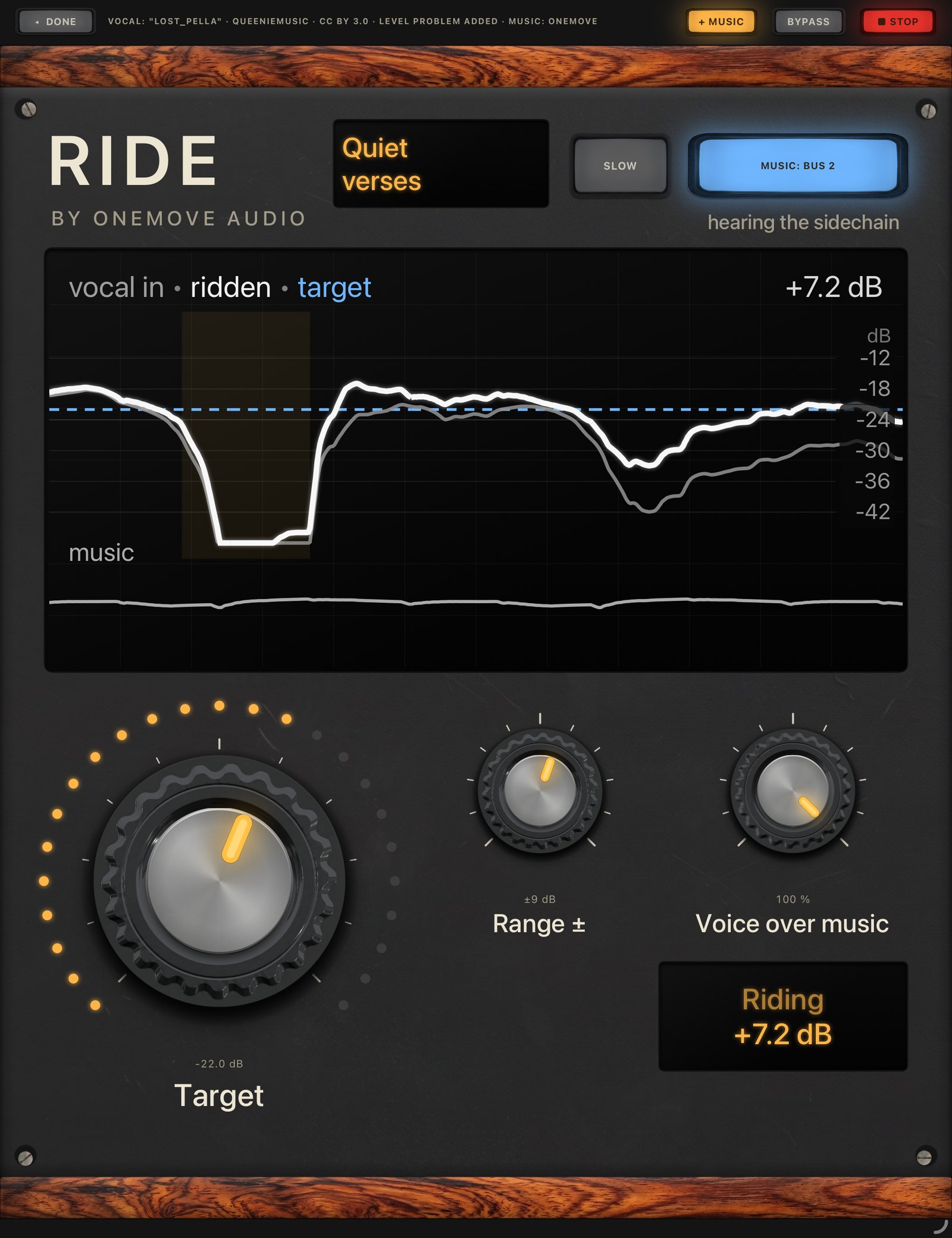
What each plug-in does
- Ride follows the level of the voice and nudges it toward your Target: quiet verses come up, loud lines come down. It holds still in breaths and pauses, so room noise isn't pulled up. It is a rider, not a compressor: it corrects part of each difference between phrases (about two thirds) and leaves the rest of the performance alone. On our test mixes it took the phrase-to-phrase level spread from 4.5 to 2.1 dB, and it raised the voice 2.8 dB when the music got 6 dB louder. Zero latency.
- De-ess reacts to how bright the "s" is compared with the rest of the voice, not to how loud the take is: on a vocal 12 dB quieter it makes the same cut. On our test singers it caught 84 % of "s" onsets at zero latency and dulled vowels by 0.05 dB.
Our measurements were made on real vocals, from input and output audio only.
Getting started
- Install OneMove Ride & De-ess from the App Store and open the app once.
- In your AUv3 host, add an audio effect on the vocal and choose OneMove › De-ess or OneMove › Ride.
- Pick a preset named after your problem, then turn the big knob.
On a vocal, put De-ess first, then Ride, before any compressor.
To hear them first without a host, tap Try De-ess or Try Ride in the app (see Try it in the app).

Ride: the controls
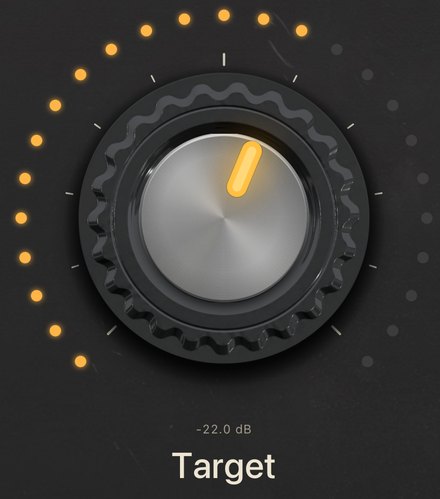
Target · −36 to −12 dB (−24 dB)
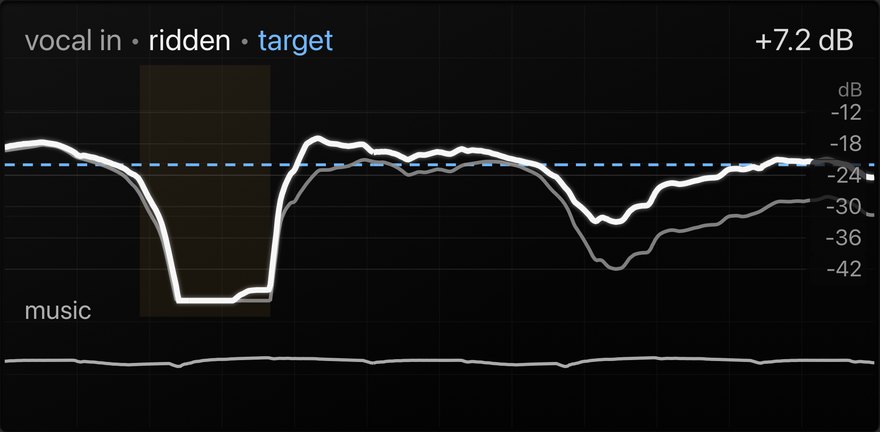
The big knob: the level you want the voice to sit at, measured as the voice's loudness while it sings (K-weighted). Raise it and the voice comes up; the dashed blue line on the screen is the target.
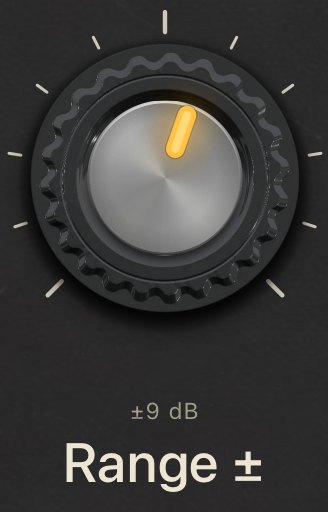
Range ± · 1–15 dB (9 dB)
The most Ride may move the voice up or down. A small range for a light touch, a large one for a very uneven take.
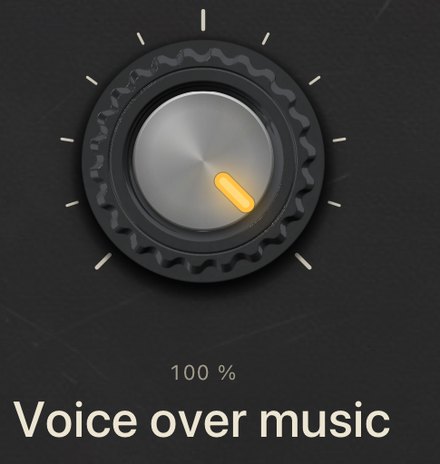
Voice over music · 0–100 % (100 %)
How much Ride lifts the voice when the music gets louder. At 0 % it ignores the music and only evens out the phrases. It needs a music source, below.
Slow · Normal / Slow (Normal)
A slower, gentler ride, for ballads and speech that should breathe.
Music · Off, Link A–H, Sidechain (Link B)
What Ride listens to as the music. Sidechain is the host's second input; Link A–H hears another OneMove plug-in through Key Link. See Key Link and sidechain.
Two more controls are in your host's parameter list and not on the panel:
- Bleed floor (host only) · −70 to −30 dB (−70 dB): below this level Ride treats the signal as bleed and doesn't ride it. Raise it for a live mic that picks up the band.
- Output (host only) · −12 to +12 dB (0 dB): output level.
Ride adds no latency.
De-ess: the controls
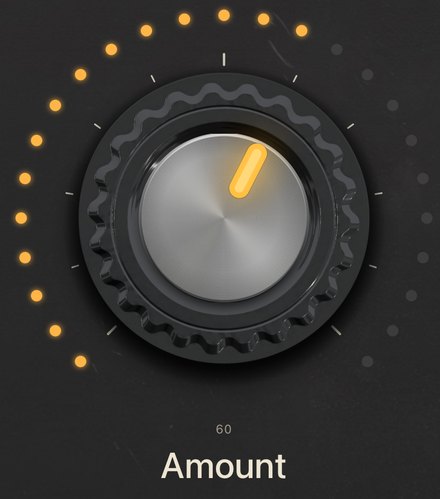
Amount · 0–100 (50)
The big knob: how much De-ess turns down the "s". 50 is the starting point. Turn it up until the "s" is tamed, then back a little.
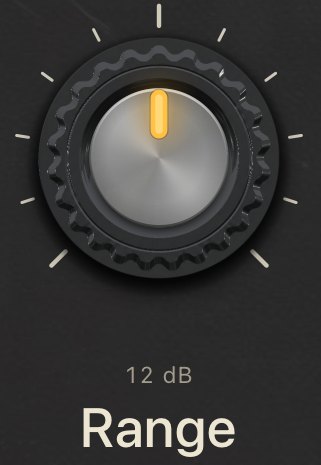
Range · 0–24 dB (12 dB)
The most De-ess may cut. It keeps a very sharp "s" from being cut too far.
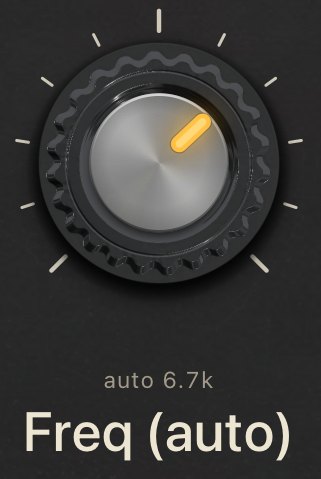
Freq (auto) · 2–12 kHz (auto)
The frequency above which De-ess works. Auto uses the corner of the S / SH mode. Turn the knob to set a corner by hand; double-tap it to return to Auto.
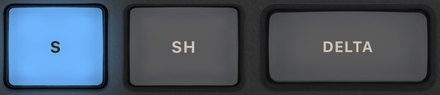
S / SH / Delta
S is the default "s" corner (about 6.7 kHz). SH moves it lower (about 4.3 kHz) for "sh" and "ch". Choosing both sets it between (about 5.2 kHz). Delta plays only what De-ess removes, so you can hear exactly what it takes out.
Split / Wide · Split (Split)
Split cuts only the highs, so the body of the voice isn't touched. Wide turns down the whole voice during the "s", for spitty consonants.
Look-ahead · Off / 5 ms (Off)
Off is zero latency, for live singing. 5 ms lets De-ess see the "s" coming and catches every onset; it reports the 5 ms to the host so it stays in time.
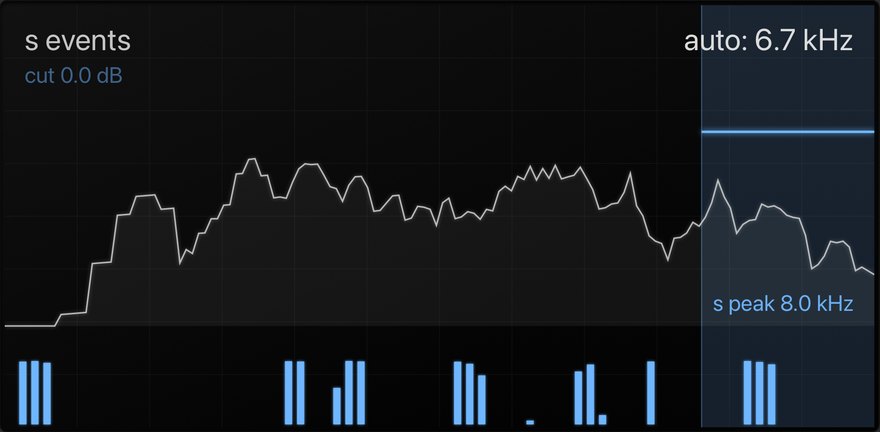
The screen's s peak shows where the voice's "s" energy actually sits. It is information: it doesn't move the corner. Mix (0–100 %, 100 %) is in your host's parameter list.
Presets

Presets are named after what they fix. Your host saves your changes with the session.
| Ride | good for |
|---|---|
| Quiet verses | a voice that sits too low in the quiet parts |
| Buried in the mix | a voice covered by the music (needs a music source) |
| Uneven phrases | a starting point for a take that jumps in level |
| Gentle evening out | a light, slow touch |
| Loud chorus, soft verse | a big difference between sections |
| Live mic with bleed | a live mic that hears the band (raises the bleed floor) |
| Spoken word | speech and podcasts |
| De-ess | good for |
|---|---|
| Harsh S's | sharp "s" (the starting point) |
| Gentle polish | a light touch |
| Hissy SH's and CH's | "sh" and "ch" sounds |
| Piercing S's | a very sharp "s" |
| Whistling S's | a whistle at a fixed high frequency |
| Spitty consonants (wide) | plosive and spitty consonants |
| Mix: catch every onset | mixing, with the 5 ms look-ahead |
Key Link and sidechain: Ride hears the music
To keep the voice over the music, Ride has to hear the music. There are two ways.
With a host that can route a sidechain
Send the music into Ride's second input (its sidechain) in your host, and set Music to Sidechain. The screen shows hearing the sidechain. Whether and how a host offers this varies; we have tested Loopy Pro, which can't route a sidechain to a plug-in, so use Key Link there. If you try a host with sidechain routing, tell us how it went.
With Key Link, in any host (Loopy Pro, GarageBand and others)
Key Link passes audio between OneMove plug-ins on the same device, on eight letters, Link A to H. It stays on the device and needs no routing.
- On the music (a track, bus or colour), add a second Ride. Open its Music menu and choose Send it on Key Link B. Its own sound doesn't change.
- On the vocal, Ride's Music is already Link B. The screen reads linked · hearing the music.
Link A is left for the vocal key that Air, Vocal Console and Balance use, so the music goes on B by default. If B is taken, send on another letter and set the vocal's Music to the same one.
Try it in the app
Try De-ess plays a sibilant vocal; Try Ride plays an uneven vocal over music. Play starts and stops it, Bypass switches the plug-in in and out so you can hear what it does, and + Music adds or removes the music. The first time you open the app a 1-minute tour shows both; Take the 1-minute tour runs it again. The app's demos are free and never use up the free version's time. The app plays only its built-in demos and never records.
Free version and purchases
- Every feature works in the free version, in any host.
- 5 minutes of processing each time a plug-in loads. Then it passes your audio through (De-ess time-aligned, Ride with a short fade) and the panel shows Free time is up. Reload the plug-in for another 5 minutes. A countdown shows on the panel.
- Bounces and exports pass through unprocessed until you unlock. The audio is never muted or watermarked.
- A Ride that only sends music on Key Link doesn't use up free time.
- Unlock once, in the app. No subscription. Your saved settings carry over.
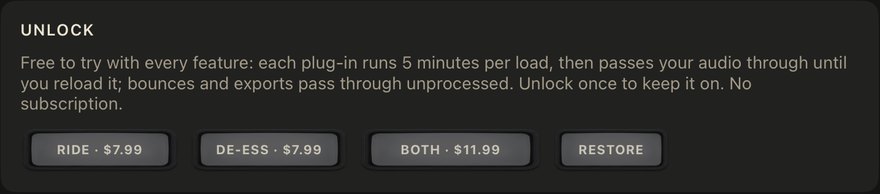
| purchase | unlocks | price (US) |
|---|---|---|
| Ride | Ride in full | $7.99 |
| De-ess | De-ess in full | $7.99 |
| Both | Ride and De-ess in full | $11.99 |
Prices in other countries are set by the App Store. Once you own one plug-in, Both is no longer offered: buy the other on its own.
- After buying, reload the plug-in in your host so it reads the unlock.
- Restore in the app unlocks the plug-ins on a new device, signed in with the same Apple Account.
- Refunds are handled by Apple, from its "Report a Problem" page.
Help and feedback
The ? button in the app opens this manual and the support page, where you can report a bug, suggest an idea or ask a question.
Tricks and use cases
A voice that disappears in the quiet verses
- The problem: the verses are too quiet next to the chorus, and a compressor makes them lifeless.
- The fix: Ride with Quiet verses. Turn Target up until the verses sit where you want them; use Range ± to limit how far it may go. Watch the white line on the screen: it should move the voice, not flatten it.
- Listen for: the verses coming up without breaths or room noise coming up with them.
A voice buried when the band plays
- The problem: the voice is fine alone and covered when the music is loud.
- The fix: put a second Ride on the music with Send it on Key Link B (or route the music to the sidechain), and use Buried in the mix on the vocal's Ride. Raise Voice over music until the words stay forward.
- Listen for: the voice rising when the music gets louder, and settling when it drops. On our test mixes it rose 2.8 dB when the music rose 6 dB. This is the setup we use ourselves in Loopy Pro.
Sharp "s" that EQ would dull
- The problem: piercing "s" and "sh", but cutting the highs with an EQ makes the whole voice dull.
- The fix: De-ess with Harsh S's. Turn Amount up until the "s" sits right, then back a little. For "sh" and "ch" use Hissy SH's and CH's.
- Listen for: the "s" tamed while the vowels stay bright. Switch on Delta to hear only what is removed: it should sound like hiss, not like the voice. The same cut happens on a quieter take.
Singing live through them
Both plug-ins add zero latency with Look-ahead Off. Put De-ess on a live vocal, and on a live mic that hears the band use Ride with Live mic with bleed, which raises the bleed floor so Ride doesn't ride the band. For mixing, switch De-ess's look-ahead to 5 ms to catch every onset.
Also worth trying
De-ess on a podcast or spoken word, with Spoken word on Ride. We haven't benchmarked speech, so trust your ears.
Automation and MIDI
Every control is a host parameter, including Music and Send, Bleed floor, Output and Mix. Automate them, or map them to MIDI controllers in your host.
Host setup tips
- Where to put them: on the vocal, De-ess first, then Ride, before any compressor.
- Latency: Ride adds none. De-ess adds none, or 5 ms with look-ahead on, which it reports to the host.
- Loopy Pro is the host we have tested. Add an effect to the vocal's track, open Audio Unit Extensions and choose OneMove. For other hosts, look under OneMove in the list of Audio Unit Extensions, and if something doesn't work, tell us which host.
Troubleshooting
The plug-in isn't in my host's list
Open the OneMove Ride & De-ess app once, then close the host completely and open it again.
No sound, or no change
- No change after a few minutes: the free version's 5 minutes are up. Reload the plug-in, or unlock.
- Still limited after buying: reload the plug-in in your host. If that doesn't help, tap Restore in the app.
- A bounce sounds unprocessed: the free version passes offline renders through. Unlock and bounce again.
- Delta is on: you hear only what De-ess removes. Switch it off.
- Ride does nothing in pauses: that is on purpose; it holds still in breaths and pauses.
- No sound at all: check the host's bypass, the track's input and monitoring, and Output and Mix.
Ride says it hears nothing
Check Music. If it reads Link B, make sure a second Ride on the music is playing, isn't bypassed, and is set to Send it on Key Link B. If you use Sidechain, the host has to send the music into Ride's second input. All the plug-ins must be on the same device.
A crackle when I move or resize the plug-in window
Moving, resizing or covering a plug-in window while audio plays can cause a short crackle in OneMove plug-ins. If you hear crackles at other times, please report it.
Report a bug or suggest an idea
Use the support page. Tell us your device, iPadOS or iOS version, host, what you did and what happened.