

OneMove Mix Scanner user manual
OneMove Mix Scanner is a free app and AUv3 effect for iPad and iPhone. It scans a mix or a vocal, says in plain words what is worth fixing and what is worth a listen, and plays you each moment it found. Everything runs on your device. Found a bug or have an idea? Tell us.
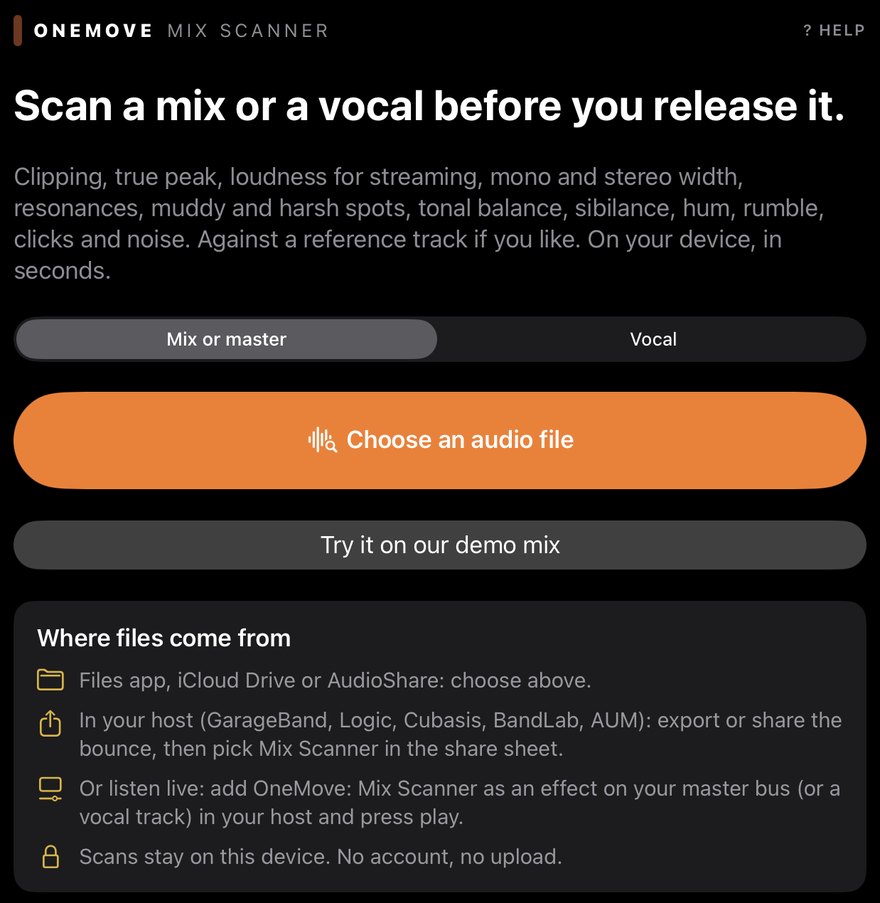
Getting started
- Install OneMove Mix Scanner from the App Store and open it.
- Choose Mix or master or Vocal, so the checks fit what you are scanning.
- Tap Choose an audio file (Files, iCloud Drive, AudioShare), or export or share a bounce from your music app and pick Mix Scanner in the share sheet.
- Wait a few seconds. Nothing is uploaded.
To try it first, tap Try it on our demo mix (the demo vocal in Vocal mode).

Reading the results
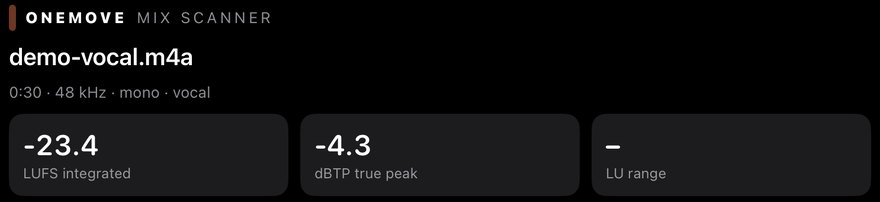

- The top numbers are integrated loudness (LUFS, measured to ITU-R BS.1770), true peak (dBTP) and loudness range (LU; it needs at least a minute of audio).
- Every check ends in one of four words: Worth fixing, Have a listen, Info or Clear. There is no score and no grade.
- A check is a pointer, not a verdict. Trust your ears: a bright mix can be bright on purpose.
The timeline
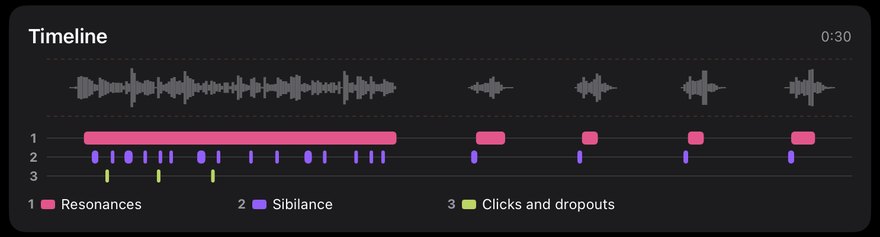
The timeline marks where things happen, one colour per check. Tap a card below it to highlight its lane. When nothing happens at a particular moment (loudness, tonal balance), the timeline says so.
The cards
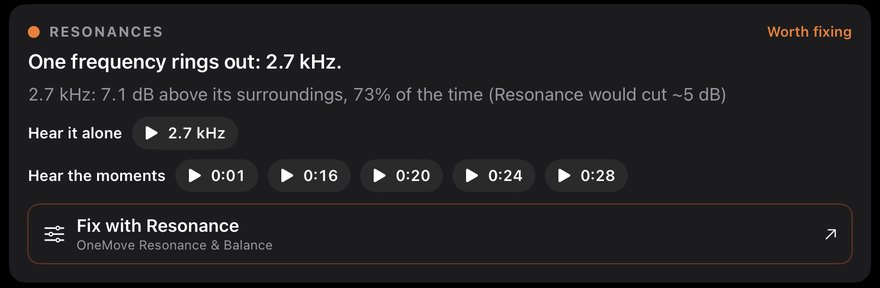
Each card names the check, says what it found in one line, and gives the numbers behind it. Then:
- Hear the moments: tap a time, and the app plays from just before it.
- Hear it alone: for a ring, tap its frequency. The app loops the part where it rings most through a narrow band, with a click-free switch back to the full mix.
- Fix with …: a finding one of our tools deals with names it. Tap it to see that app on the App Store. Mix Scanner needs none of them, and a tool that isn't released yet says so.
Against a reference
Tap Choose a reference track and pick a song you would like yours to sound like. Mix Scanner measures it the same way and shows where yours differs: loudness, punch, the five tone regions and width.
Tonal balance without a reference is compared with the medians of 7 released mixes (Mix mode) or 13 raw vocals (Vocal mode). It never says more than Have a listen: a style can be bright or dark on purpose.
Listen live on a bus (AUv3)

- Open the app once after installing it.
- In your AUv3 host, add OneMove: Mix Scanner as an effect on the master bus (or a vocal track).
- Choose Mix or Vocal, and how long to listen with the timer menu: Whole song (the results appear when playback stops), 30 seconds, 1 minute or 2 minutes.
- Press play in the host. The plug-in passes the audio through untouched and listens. Show results now works any time after 10 seconds.

- The longest listen is 10 minutes. Times in the plug-in are listening time.
- Hear it in the plug-in plays back what the scanner heard, on its output. If it is silent, press play in the host.
Export

The share button exports a PDF report or a CSV of the numbers, to save, print or send to your mix engineer.
Free
OneMove Mix Scanner is free: no purchases, no ads, no account, no analytics. Its only network request is a download of the public list of OneMove products, at most once a day, which sends nothing about you. The Fix with App Store page is Apple's. Details in the privacy policy.
Help and feedback
? Help in the app and in the plug-in opens this manual or the support form to report a bug, suggest an idea or ask a question. The form is filled in with the app version and your device; nothing is sent until you press Send.
Tricks and use cases
Check a bounce before you release it
- The setup: export the bounce from your host, share it to Mix Scanner, Mix or master.
- Look at: clipping and true peak first, then loudness for the services you release on. Then the yellow cards: play their moments and decide.
Find the ring in a vocal
- The setup: Vocal, the dry or lightly processed vocal.
- Listen for: a Resonances card, then Hear it alone on its frequency. If it rings, Resonance or an EQ cut at that frequency deals with it.
Compare with a song you love
Scan your mix, then Choose a reference track. The differences in loudness, punch, tone regions and width tell you where to listen, not what to do.
Listen to a whole session
Put the plug-in on the master bus with Whole song, play the song through, and read the results when playback stops. It doesn't change the sound.
Host setup tips
- Where to put it: last on the master bus, to scan what you hear; or on a vocal track, in Vocal.
- No latency: the plug-in passes the audio through untouched.
- Loopy Pro is the host we have tested our plug-ins in. If something doesn't work in your host, tell us which one.
Troubleshooting
A file won't open
Check that it is audio the Files app can preview. Re-export it as WAV, AIFF or AAC and try again.
The plug-in shows nothing
Press play in the host, and check that the plug-in isn't bypassed. Results appear after 10 seconds of listening (Show results now), or when playback stops on Whole song.
Hear it is silent in the plug-in
It plays through the plug-in's output: press play in the host, and check the track isn't muted.
"Fix with" says the app isn't on the App Store yet
That tool isn't released yet. The finding is still worth a listen.
Tonal balance only says "have a listen"
That is on purpose: it is compared with a small set of released music, so it never says "worth fixing". Use a reference track for a closer comparison.
Report a bug or suggest an idea
Use the support form, or ? Help in the app, which fills in the app version and your device. Tell us your iPadOS or iOS version, host, what you scanned and what happened. For an idea, pick Idea or request.