
OneMove Vocal Console manual
This manual covers OneMove Vocal Console 1.0 for iPad and iPhone. Each module has its own page with its controls in full: see the 14 modules.
Start here
- Insert OneMove Vocal Console on your vocal track, or open the app and press ▶ Play with a demo vocal.
- Sing for six seconds and press LEARN in the header. It sets the input level the modules are designed around.
- Pick Studio to mix or Live to sing through it, with the switch in the header.
- Choose a chain preset, then turn one knob per module to taste. A knob at 0 changes nothing.
- Need more? Tap Expert ▸ on any module.
What each knob does
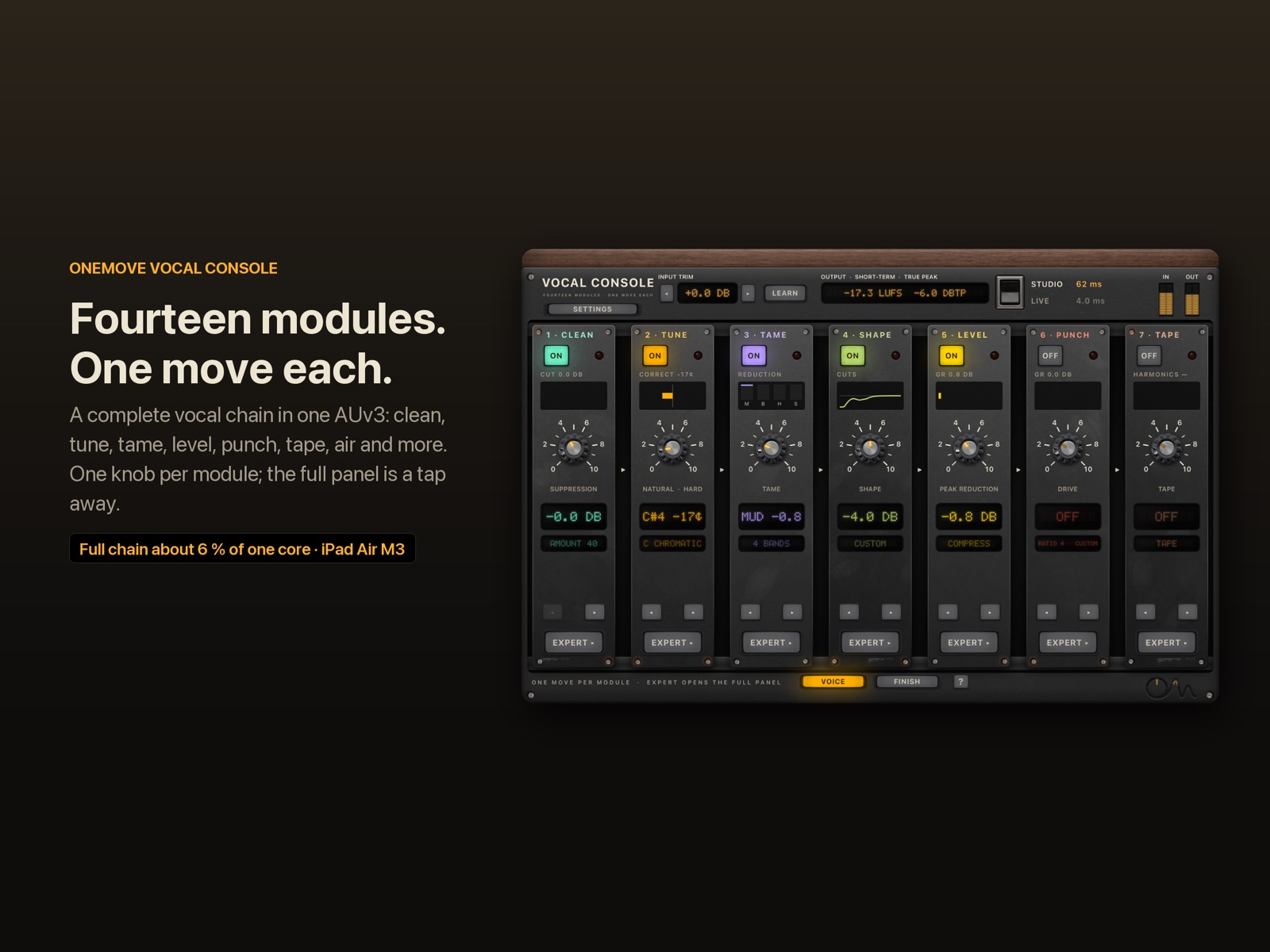
| module | the knob | turn it up when |
|---|---|---|
| Clean | removes background noise | you hear fans, hiss or traffic |
| Tune | natural to hard-tuned | notes drift, or you want the effect |
| Tame | firmness on mud, harshness, esses | some words jump out |
| Shape | cleaning EQ cuts | the voice is boomy or boxy |
| Level | smooth, slow compression | the level wanders |
| Punch | fast compression and bite | it needs to come forward |
| Tape | how hard the voice hits tape | peaks are spiky, or it needs warmth |
| Floor | quiets the gaps | you hear noise between phrases |
| Ride | how far level is ridden | words get lost in the mix |
| Tube | valve thickness | it sounds thin |
| Character | your voice to the full patch | you want a different voice or a harmony |
| Air | opens the top | it sounds dull |
| Loud | carry on small speakers | it vanishes on a phone |
| Finish | final tone and space | it needs body, air or a room |
One Move
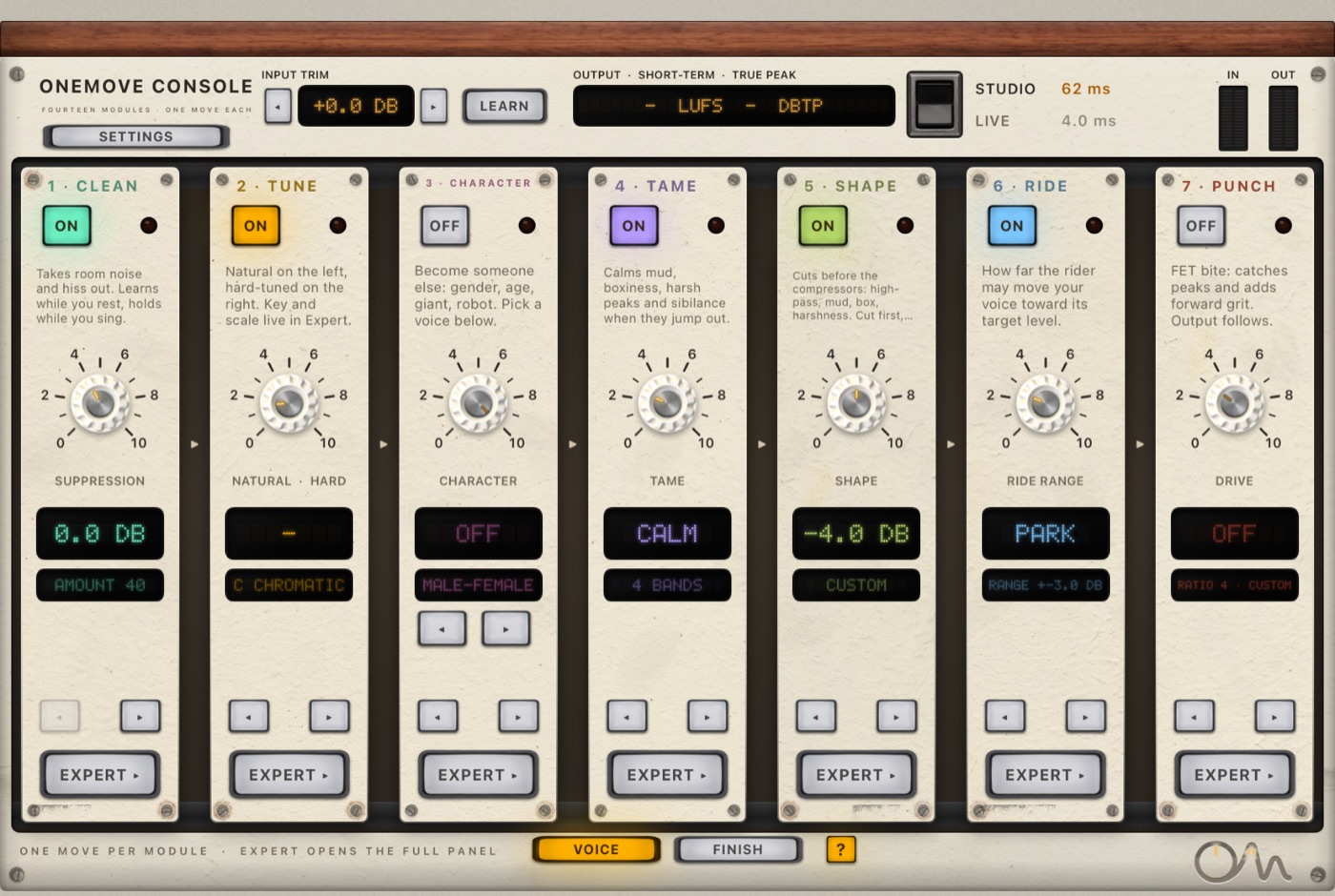
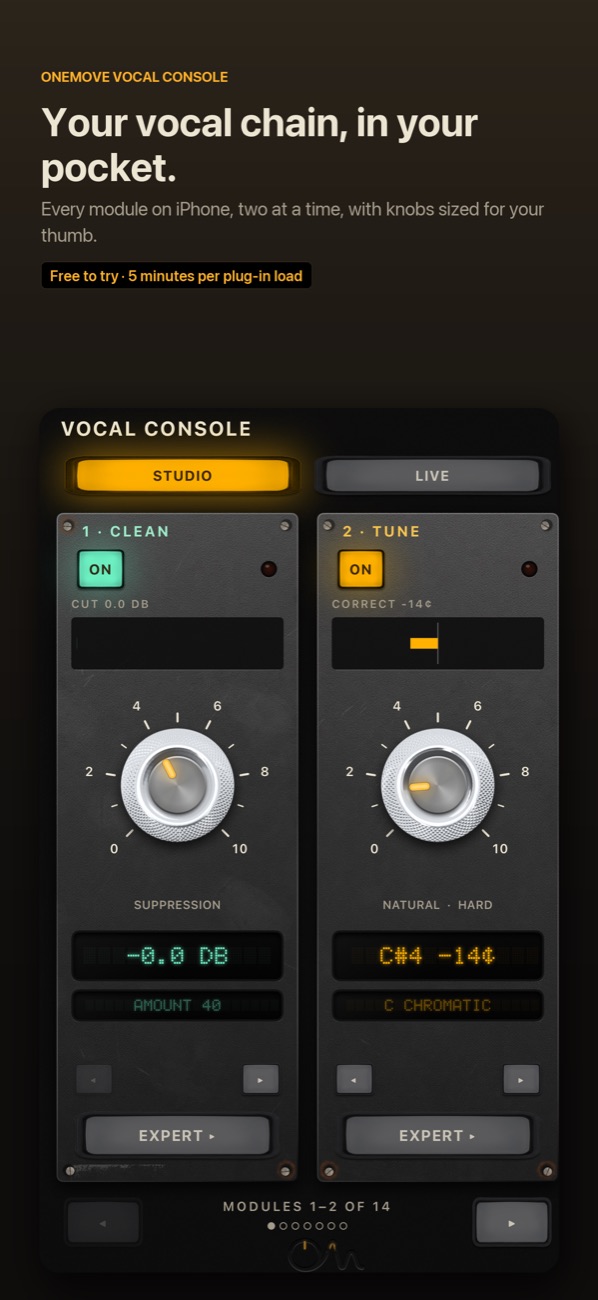
The plug-in opens on One Move: one column per module, in signal order, on two pages (Voice and Finish, switched at the bottom). On iPhone you see two columns at a time and swipe or use ◂ ▸ to move through them.
Each column has, from top to bottom:
- a power lamp: tap it to switch the module on or off;
- a small overload lamp (see Lamps);
- a one-line description, or a live mini display (switch with ? at the bottom);
- the knob: the module's One Move;
- a read-out of what the module is doing now, and the current setting;
- ◂ ▸ to move the module earlier or later in the chain;
- Expert ▸ to open the module's full panel.
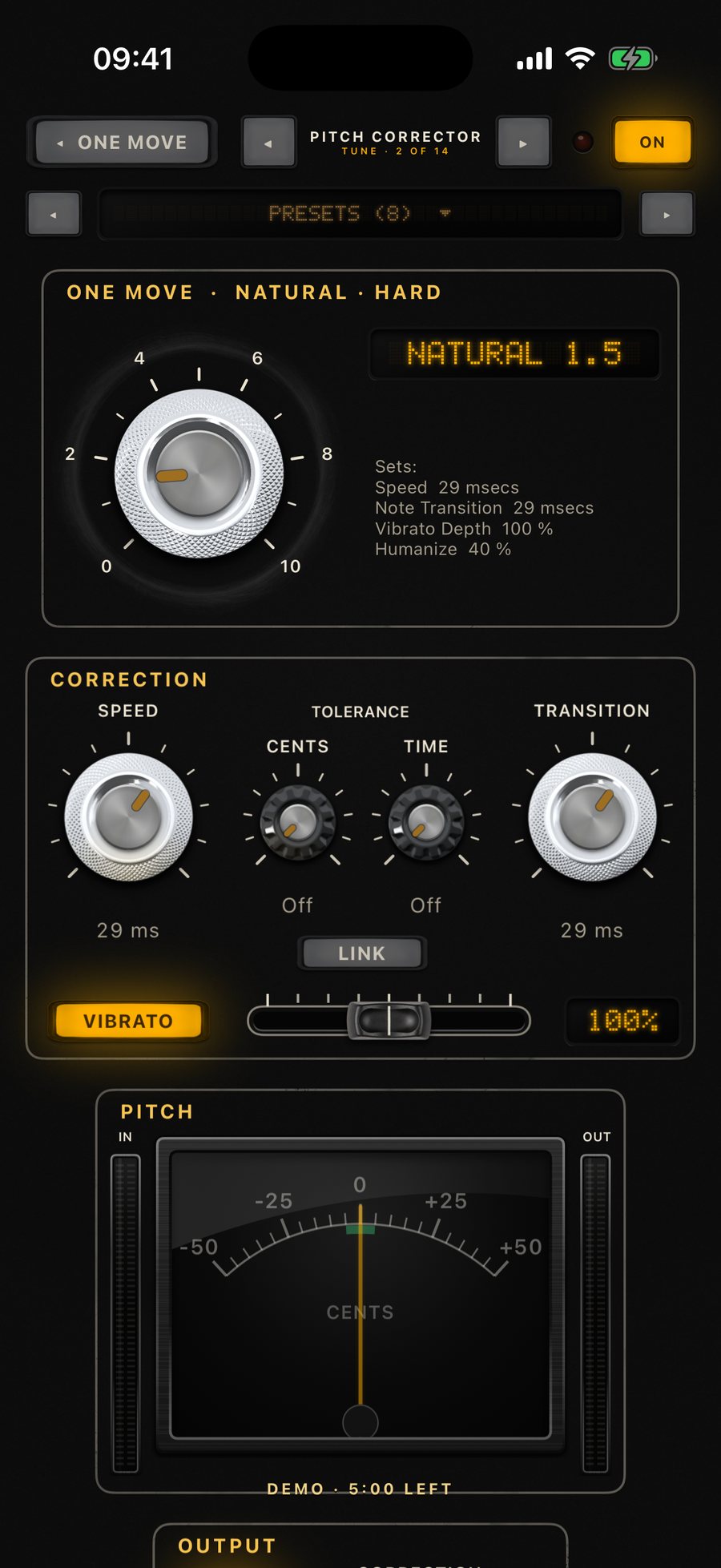
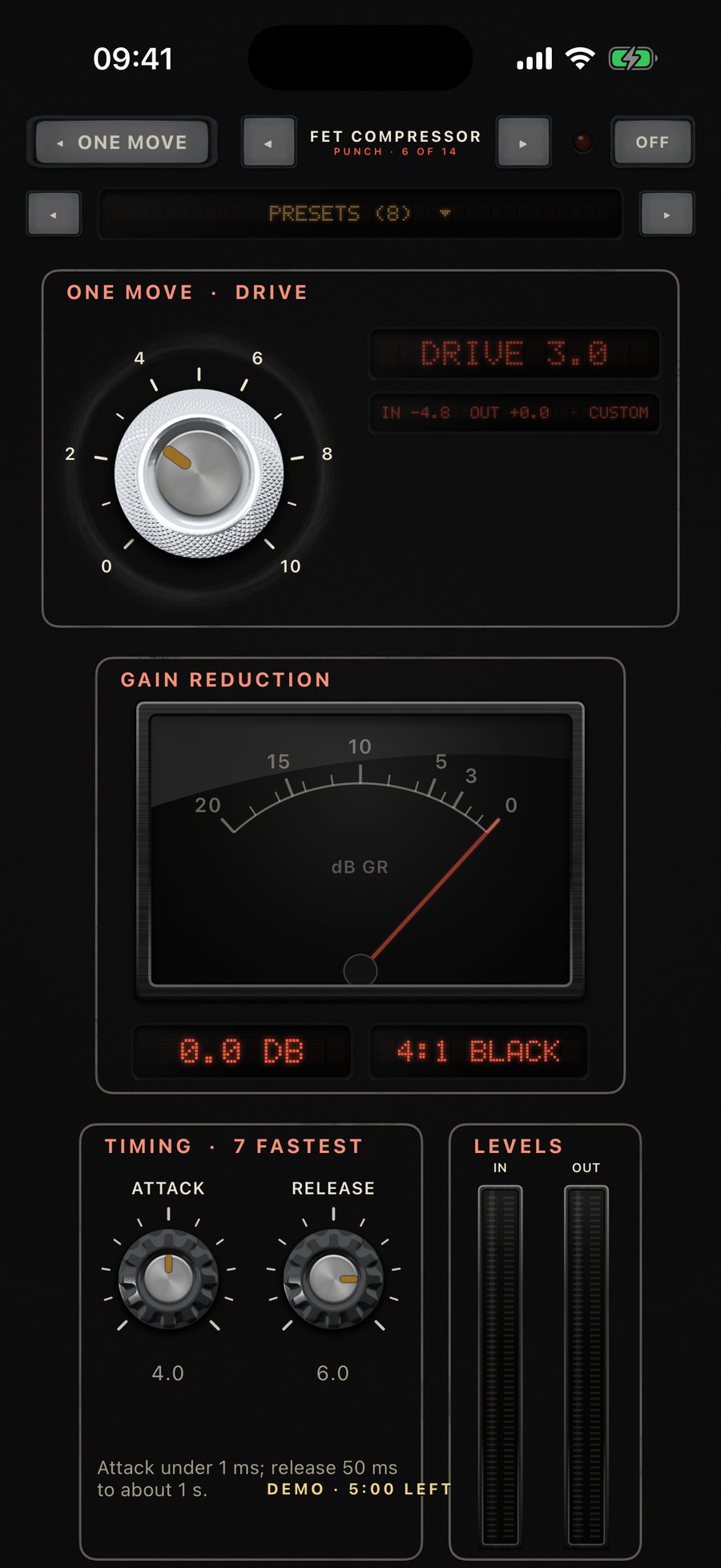
Expert
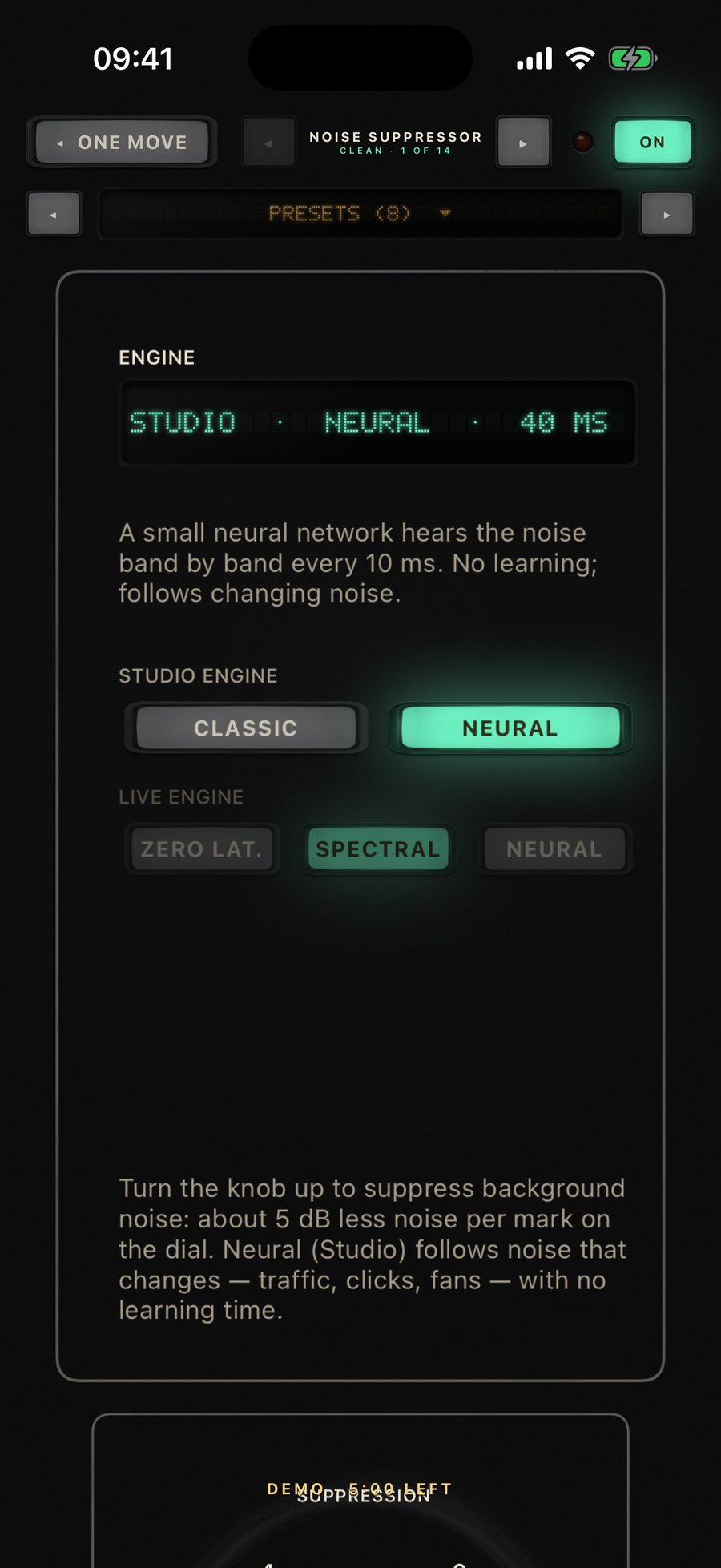
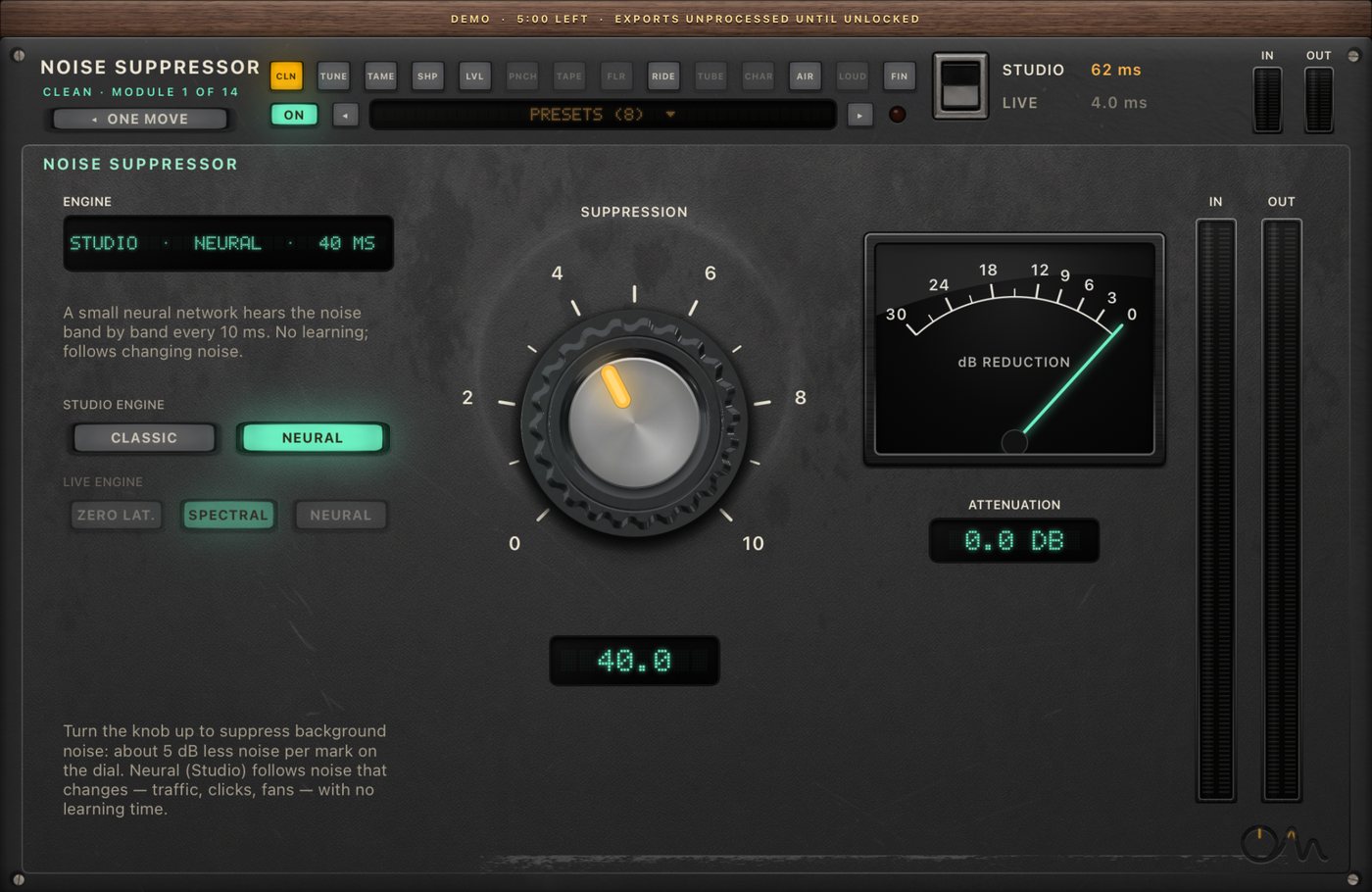
Expert shows one module's full panel. The strip of tiles at the top jumps between modules; the knob on the left is the same One Move knob, and under it the panel lists the values it sets. ◂ One Move in the header goes back.
- When you edit a control so that it no longer matches the knob, the module shows CUSTOM on the One Move page.
- Turning the knob again moves the controls it owns and leaves the rest of your edits alone.
- Saving a session keeps every Expert value as it is. Reloading never lets a knob overwrite them.
Presets
Chain presets set the whole console at once: which modules are on, their knobs, and any Expert values a preset needs. Open the preset window in Expert and tap it for the list, use ◂ ▸, or swipe the window left (next) or right (previous). The factory presets cover lead vocals, live singing, speech and podcasts, loop recording and effects. Your host's own preset or session saving stores everything as well.
Gain staging
- Input trim (header, ◂ ▸): ±24 dB in 0.5 dB steps, the first thing in the chain. The header's In meter shows the level after the trim.
- LEARN listens to 6 seconds of singing (above about −55 dBFS) and sets the trim for −18 dBFS RMS. The modules' thresholds are designed around that level, so do this first.
- Output shows short-term loudness (LUFS, 3 s) and true peak (dBTP, held 3 s), plus the Studio limiter's gain reduction when it works. The read-out turns red at 0 dBTP.
Studio and Live
The rocker switch in the header picks the engine for the whole chain. Both modes show their latency at the current sample rate; the active one is lit.
- Studio for mixing. Clean uses its neural engine (or Classic), Tune has 20 ms of look-ahead, and the output ends in a true-peak limiter with 4× oversampled detection. Plug-in latency 61.6 ms (Neural) or 32.3 ms (Classic) at 48 kHz, compensated by the host.
- Live for singing through it. Clean uses a fast engine (Spectral, Zero latency or Neural 0 ms), Tune adds 0.67 ms, and the output ends in a zero-latency safety stage that leaves the voice untouched below −0.5 dBFS and never passes −0.1 dBFS. Plug-in latency 4.0 ms or 1.3 ms.
A module that is switched off keeps its delay, so the latency only changes when you switch modes or Clean's Live engine. The mode switch fades over a few milliseconds, so it doesn't click. More in latency explained.
Settings
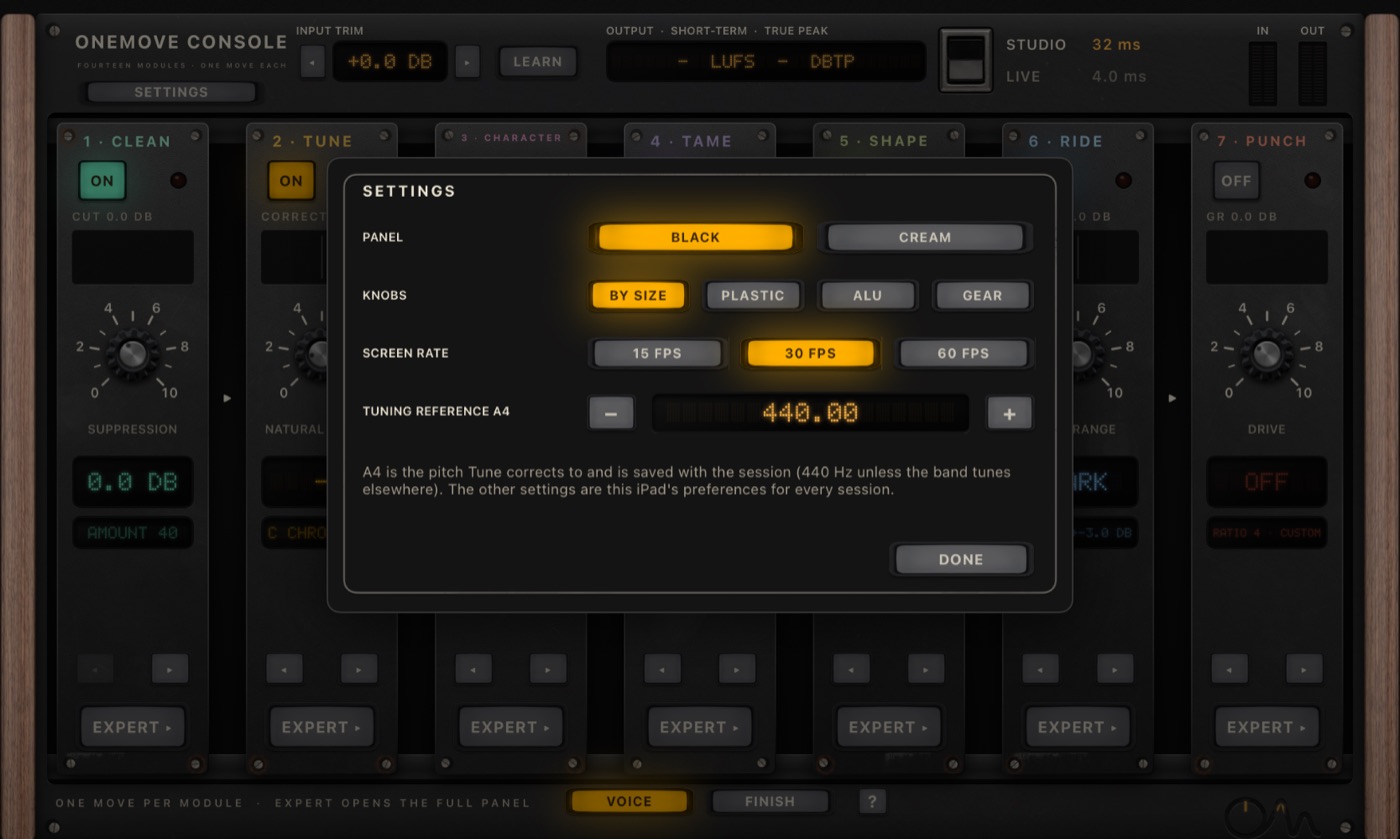
Settings (top left on One Move) holds:
- Panel finish: black or cream.
- Knob look: by size, plastic, aluminium or gear.
- Screen rate: 15, 30 or 60 frames per second for the meters. Lower saves power. Meters stop drawing when the plug-in is off screen.
- Tuning reference (A4): the pitch Tune corrects to (440 Hz unless your band tunes elsewhere). A4 is saved with the session; the other settings are this device's preferences for every session.
Lamps
Each column's small lamp stays dark while the module simply works.
- Amber: the module works hard. Punch or Level over 10 dB of gain reduction, a Tame band over 6 dB, Loud shaving over 4 dB, Clean cutting over 20 dB, or Ride parked at its range limit.
- Red: a problem. Punch or Level over 18 dB, Tame over 10 dB, Loud over 7 dB, or the module pushed the signal near clipping. Red holds for 1.5 s and flickers that module's power key, so you can find it.
Knobs
- Drag vertically to turn a knob.
- Fine control: while dragging, move your finger sideways away from the knob and it gets finer: half speed at 50 points, a third at 100 points, down to a tenth.
- Double-tap a knob to reset it.
MIDI
Tune can use MIDI in two ways (Tune's Expert panel → MIDI / Keyboard):
- Target Pitch: the note you play is the target. Tune still uses Speed and Note Transition to get there.
- Reference Tone: plays a sine at the held note, at a level you set (±18 dB), to sing against.
Route a MIDI track or controller to the plug-in in your host. The on-screen keys in Tune's panel do the same without MIDI. The keys also set per-note rules (Legal, Illegal, Pitch Up, Pitch Down, Bypass).
Key Link
Key Link shares a signal between instances of the plug-in on eight channels, Link A to H. Ride uses it to hear the music in hosts that can't route a side-chain to an AUv3 effect. Each instance can send its output on one channel (Send Vocal On) and Ride can receive one channel (Music From). Setup: hosts and setup.
Automation
All 207 controls are host parameters, including each module's knob, the mode switch, the module order and the power lamps. Automate the knob for broad moves; automate an Expert control for a precise one.
The in-app console
The OneMove Vocal Console app runs the plug-in on its own:
- Source: one of two demo vocals, or your microphone. Use headphones with the microphone.
- A/B: a bypass that is latency-matched, so switching doesn't jump in time.
- Presets: the same chain presets as in the plug-in.
The demo vocals never use up the demo time, and nothing can be recorded or exported from the console.
Demo and unlock
- Every module works in the demo.
- Each time the plug-in loads, it processes for 5 minutes of real time. After that it passes the voice through unprocessed, at the same latency. Reload the plug-in for another 5 minutes.
- Until you unlock, bounces and exports (offline renders) pass through unprocessed.
- One in-app purchase of $19.99 unlocks the full version. No subscription.
- To restore a purchase on a new device, tap Restore purchase on the app's welcome screen. Purchases are handled by Apple.
Signal path facts
| All modules off | the output is the input, delayed by exactly the reported latency (bit-exact) |
| Added noise | none: digital silence in gives digital silence out with all 14 modules on |
| Bypass | a latency-matched dry signal |
| Processing | 32-bit floating point |
| Sample rates | 44.1–96 kHz |
Full figures: specifications.