

Get Compressors on the App Store
OneMove Compressors user manual
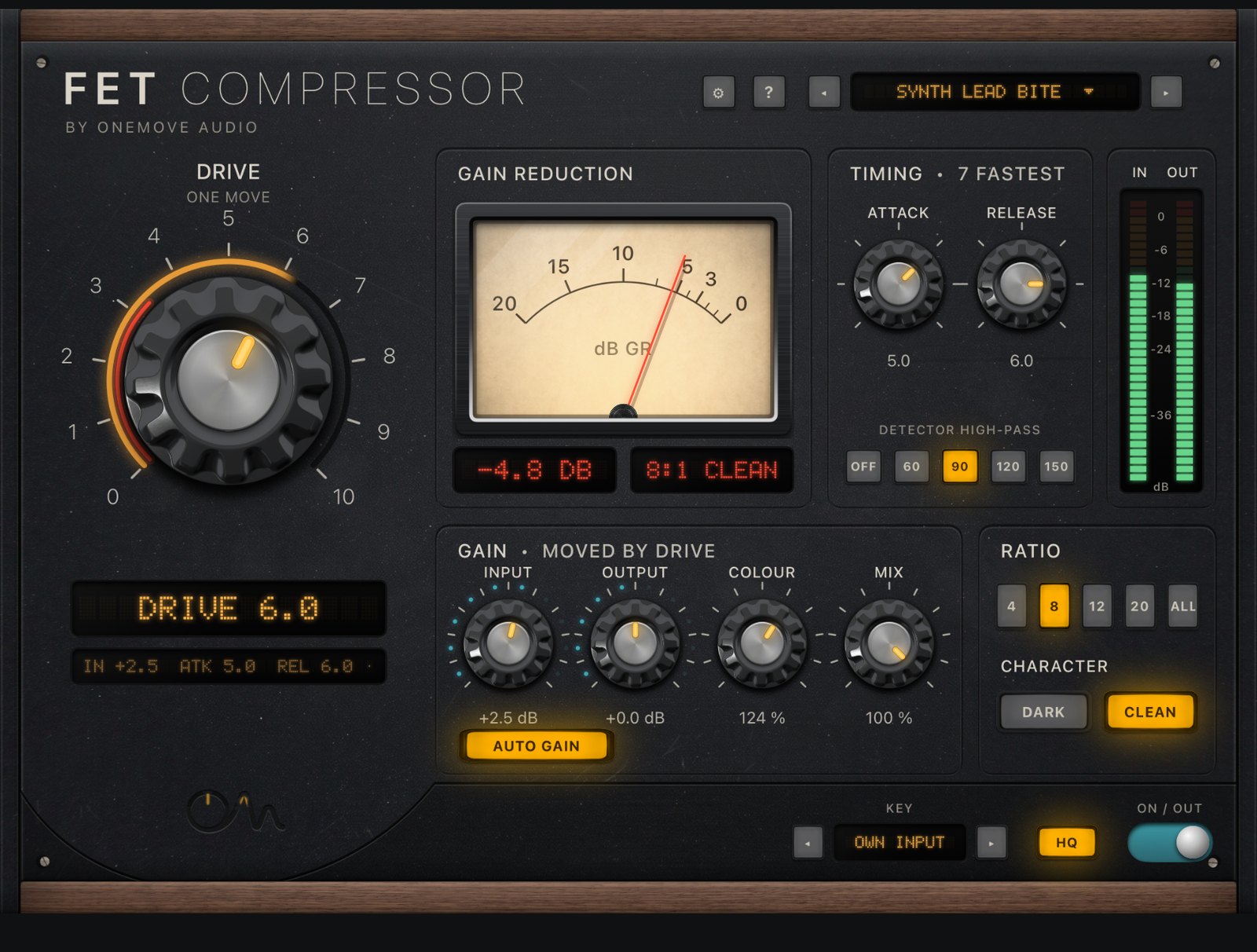
OneMove Compressors is one app with two AUv3 plug-ins. FET Comp is a 76-style FET limiter: fast, with bite. Opto Comp is a 2A-style opto leveller: smooth and program-dependent. Both are made from the Punch and Level modules of OneMove Vocal Console and voiced for synths, keys, buses and voice. Found a bug or have an idea? Tell us.
Getting started
- Install OneMove Compressors from the App Store and open the app once.
- In your AUv3 host, add an audio effect and choose OneMove › FET Comp or OneMove › Opto Comp.
- Each opens on its Default preset. Pick a preset for the part, then adjust the main knob.
FET Comp: the controls
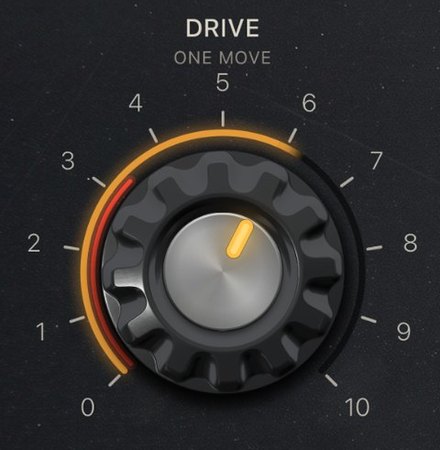
Drive · 0–10
The main knob: how hard the compressor works.
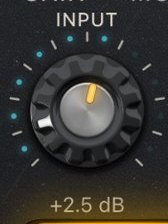
Input · −24 to +24 dB
Level into the compressor. More input means more compression.
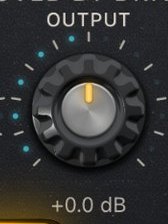
Output · −24 to +24 dB (0 dB)
Level out.
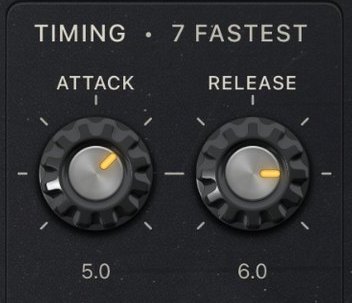
Timing: Attack and Release · 1–7 each, 7 fastest
Attack is how fast it grabs a peak; Release is how fast it lets go.
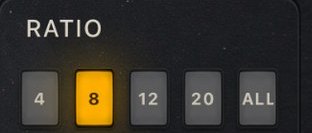
Ratio · 4:1, 8:1, 12:1, 20:1, All
How firmly it holds peaks down. All is the aggressive all-buttons mode.

Character · Dark / Clean (Clean)
Two voicings of the circuit.
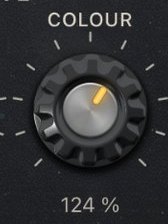
Colour · 0–200 %
How much of the circuit's harmonic colour you hear.
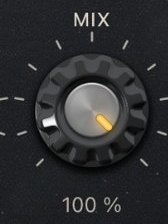
Mix · 0–100 % (100 %)
Blend with the dry signal, for parallel compression.

Auto Gain · On / Off (On)
Keeps the level roughly the same as you compress harder.
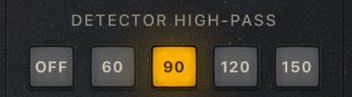
Detector High-Pass · Off, 60, 90, 120, 150 Hz
Keeps low bass from triggering the compressor.

HQ (4x) · On / Off (On)
Processes at four times the sample rate, for clean highs on bright leads. With HQ on, FET Comp reports its small filter delay to the host (4 samples at 44.1 and 48 kHz); with HQ off it adds no latency.
Opto Comp: the controls
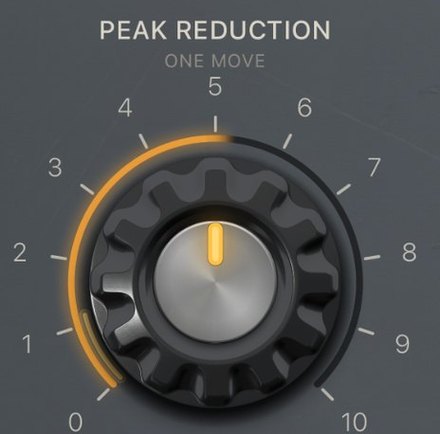
Peak Reduction · 0–10
The main knob: how much it levels.
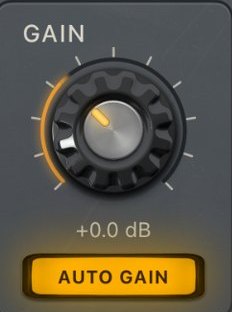
Gain and Auto Gain · −12 to +24 dB (0 dB); Auto Gain On / Off (On)
Gain sets the output level. Auto Gain keeps the level roughly the same as you level harder.
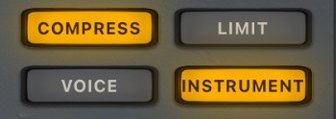
Compress / Limit and Detector · Compress or Limit; Voice or Instrument (Instrument)
Limit holds peaks more firmly than Compress. The Voice detector is tuned for vocals; Instrument listens to the full band.
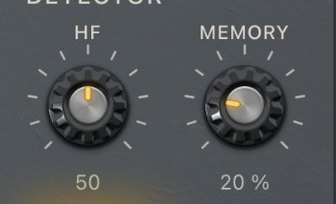
HF Emphasis and Memory · 0–100 (50); 0–100 % (30 %)
HF Emphasis sets how much the top end drives the compression: lower it if bright sounds get squashed. Memory sets how much the release slows after long, steady levelling, as an opto cell does.
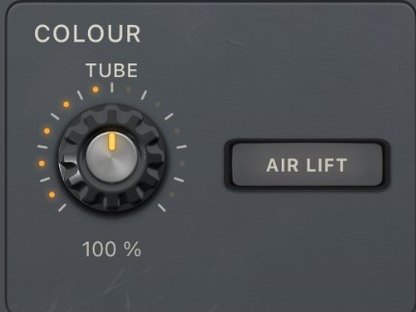
Colour: Tube and Air Lift · 0–200 % (100 %); Air Lift On / Off (Off)
Tube is the warmth of the output stage. Air Lift opens the top end a little as the levelling gets deeper.
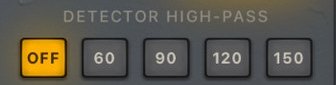
Detector High-Pass · Off, 60, 90, 120, 150 Hz
Keeps low bass from triggering the levelling.
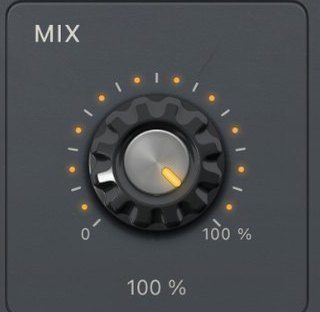
Mix · 0–100 % (100 %)
Blend with the dry signal.
Opto Comp adds no latency.
Both plug-ins
- ON / OUT switches the compressor in and out with a short crossfade.
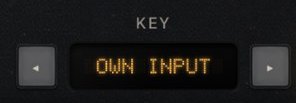
- Key (Key Input in your host's parameter list) chooses what the compressor listens to: Own input, Link A–H (another OneMove plug-in, through Key Link) or Sidechain (the host's side-chain, where the host can route one). See Key Link.
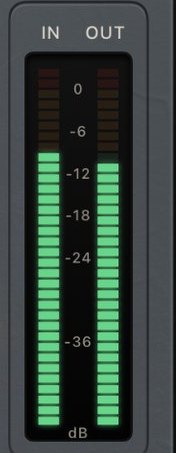
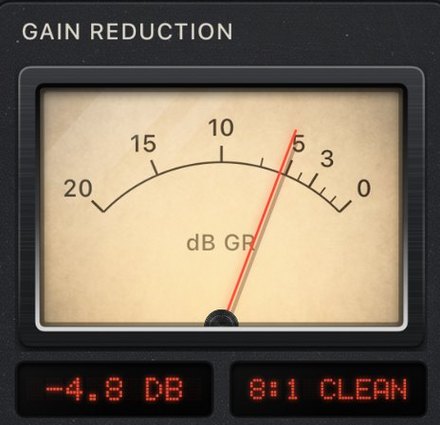
- The meters show the level in and out and the gain reduction.
Presets

Pick a preset from the menu, or step through them with ◂ ▸. A preset sets every control. Your host saves your changes with the session.
| FET Comp | good for |
|---|---|
| Default | a starting point |
| Synth Lead Bite | leads that need to cut through |
| Bass Grip | a steady bass line |
| Keys Glue | keys and comping parts |
| Drum Bus Smash | hard parallel drum compression |
| Drum Bus Snap | tighter drums with more attack |
| Vocal | a forward vocal |
| Opto Comp | good for |
|---|---|
| Default | a starting point |
| Synth Bass Even | an even synth bass |
| Pad Smooth | pads and long notes |
| Keys Level | piano and keys |
| Bus Glue | a light hold on a bus |
| Lead Limit | a lead held firmly in place |
| Vocal | smooth vocal levelling |
Key Link
Key Link passes a signal from one OneMove plug-in to another on the same device, on eight letters (Link A to H), with no side-chain routing in the host. Set Key Input to a letter, and the compressor reacts to that signal instead of its own track: for example, a music bus that dips when the vocal comes in.
To send a vocal on Link A, use Send vocal key in OneMove Air (in ⚙︎), or Send Vocal On in OneMove Vocal Console (Expert ▸ Ride ▸ Key Link).
Free version and purchases
- Every feature works in the free version, in any host.
- 5 minutes of real-time processing each time a plug-in loads. Reload the plug-in for another 5 minutes.
- Bounces and exports pass through unprocessed until you unlock. The audio is never muted or watermarked.
- Unlock FET Comp, Opto Comp, or both at once, with a one-time in-app purchase in the app. No subscription. Your saved settings carry over.
- Restore purchase in the app unlocks them again on a new device, signed in with the same Apple Account.
- Refunds are handled by Apple, from its "Report a Problem" page.
Tricks and use cases
A punchy, forward vocal: FET Comp
- The setup: FET Comp with the Vocal preset. Turn Drive until the meter moves on every phrase.
- Listen for: consonants and phrase starts coming forward. If it gets aggressive, lower Attack (slower) so the first part of each word gets through.
Smooth, even levelling: Opto Comp
- The setup: Opto Comp with the Vocal preset and the Voice detector. Set Peak Reduction for a few dB on the meter.
- Listen for: quiet and loud lines evening out without the compressor being heard. Raise Memory for a slower, gentler recovery after long phrases.
Both, in series
Use Opto Comp first, then FET Comp, each doing less: the opto evens out the phrases, the FET catches the peaks that are left. It is the order OneMove Vocal Console uses for its Level and Punch modules.
Parallel drum smash
FET Comp on a drum bus with Drum Bus Smash: the All ratio, deep gain reduction, and Mix at 45 % to blend the crushed sound with the dry drums.
Synths and keys
Start from Synth Lead Bite or Bass Grip (FET Comp), or Synth Bass Even, Pad Smooth or Keys Level (Opto Comp). Both are voiced for instruments as well as voice.
Play or sing live through them
Opto Comp adds no latency. FET Comp adds none with HQ off; with HQ on it reports a few samples (4 at 44.1 and 48 kHz), which hosts compensate.
Automation and MIDI
Every control is a host parameter. Automate them, or map them to MIDI controllers in your host.
Host setup tips
- Where to put them: FET Comp on parts that need control and bite; Opto Comp where you want smooth, even levelling. For a classic chain, put Opto Comp after FET Comp, or the other way round, and use less of each.
- Latency: Opto Comp adds none. FET Comp with HQ on reports a few samples, which hosts compensate; switch HQ off for zero latency when you play through it live.
- Loopy Pro is the host we have tested our plug-ins in. If something doesn't work in your host, tell us which one.
Troubleshooting
The plug-in isn't in my host's list
Open the OneMove Compressors app once, then close the host completely and open it again. Hosts read the list of plug-ins when they start.
No sound, or no compression
- No compression after a few minutes: the free version's 5 minutes for this load are up, so the plug-in passes the sound through. Reload it, or unlock.
- A bounce sounds unprocessed: the free version passes offline renders through. Unlock and bounce again.
- ON / OUT is on OUT, or the main knob is at 0, or Mix is at 0 %.
- Key Input is on a letter that nothing sends on: the compressor listens for a key that isn't there. Set it to Own input.
- No sound at all: check the host's bypass, the track's input and monitoring, and the output level.
A crackle when I move or resize the plug-in window
A known issue in version 1.0, in all OneMove plug-ins: moving, resizing or covering the plug-in window while audio plays can cause a short crackle. A fix is planned for an update. If you hear crackles at other times, please report it.
Key Link isn't connecting
- Check that the sender is playing, isn't bypassed, and sends on the same letter as Key Input.
- Only one plug-in should send on a letter.
- All the plug-ins must be on the same device. Key Link passes audio only between OneMove plug-ins there; it never leaves the device.
Report a bug or suggest an idea
Use the support form, or Help & bug report in the app, which fills in the app version and your device. Tell us your host, what you did and what happened. For an idea, pick Idea or request.