
OneMove Air user manual
OneMove Air adds openness and breath to the top of a voice, a synth or a mix. It is free, with no in-app purchases, no ads and no account, and it runs as an AUv3 plug-in in your host and in its own app on iPad and iPhone. It adds no latency. Found a bug or have an idea? Tell us.
Getting started
- Install OneMove Air from the App Store and open the app once.
- In your AUv3 host, add an audio effect on a track or bus, and choose OneMove › Air. In the host's list it is called OneMove: Air.
- The panel opens on the Default preset (Air 35 %). Turn the big Air knob until the part opens up, and switch ON / OUT to compare.
On iPad the panel scales to the window the host gives it. On iPhone the same controls stack in a column you can scroll.
If Air doesn't appear in your host's list, see Troubleshooting.
The controls
| control | range (default) | what it does |
|---|---|---|
| Air | 0–100 % (35 %) | The one move. High Air follows it and Mid Air is set to 60 % of it. |
| Mid Air | 0–100 % (21 %) | How much the upper-mid layer (presence) can be lifted. |
| High Air | 0–100 % (35 %) | How much the top layer (air, sparkle) can be lifted. |
| Mid Hz | 1.5–6 kHz (3 kHz) | Where the Mid Air layer starts. |
| High Hz | 6–16 kHz (9 kHz) | Where the High Air layer starts. |
| Floor | −90 to −30 dB (−60 dB) | Below this level the lift fades, so pauses and hiss aren't brought up. |
| Trim | −12 to +6 dB (0 dB) | Output level. |
| Mix | 0–100 % (100 %) | Blend with the dry signal. |
| ON / OUT | Switches Air in and out with a 10 ms crossfade. In OUT, the output is your input, bit for bit. |
The Air knob is a macro: turning it sets Mid Air and High Air together. You can then change Mid Air or High Air on their own; turning Air again sets both again.
Each control's value shows below it, and the ? button in the header explains every control in the panel itself.
The display and the Lift meter
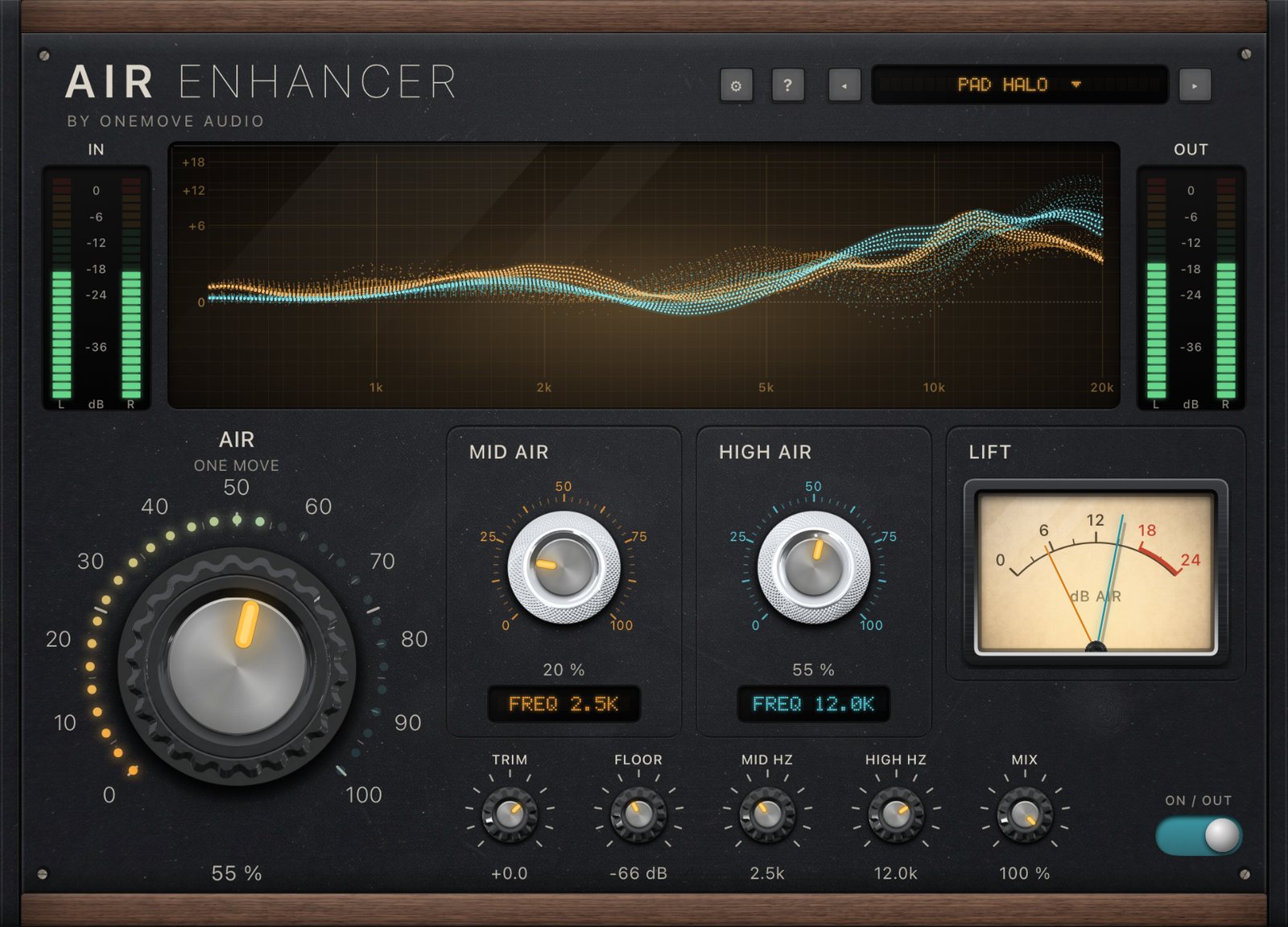
- The display shows frequency across and added level up from the zero line. The amber ribbon is Mid Air and the cyan one is High Air. Each rises where its layer is adding air right now, by as much as it adds, and moves with the music. Loud bands get less (the lift backs off), and in silence everything settles flat. A flat display means Air is adding nothing.
- The Lift meter has two needles: High Air (cyan) and Mid Air (amber), showing the air added now, in dB.
- IN and OUT meters on either side of the display show the levels before and after Air.
Presets
Pick a preset from the menu in the header, or step through them with ◂ ▸. A preset sets every control; change anything afterwards as you like. Your host saves your settings with the session.
| preset | Air | what is set besides the Air knob | good for |
|---|---|---|---|
| Default | 35 % | nothing | a starting point on anything |
| Synth Shimmer | 45 % | High Hz 11 kHz | leads and plucks |
| Pad Halo | 55 % | Mid Air 20 %, Mid Hz 2.5 kHz, High Hz 12 kHz, Floor −66 dB | pads and atmospheres |
| Keys Sparkle | 40 % | Mid Air 30 %, Mid Hz 3.5 kHz | piano, electric piano, keys |
| Bus Open | 25 % | High Hz 10 kHz, Floor −70 dB | a submix or the whole song |
| Vocal Air | 35 % | Floor −60 dB | lead and backing vocals |
Key Link: Send vocal key
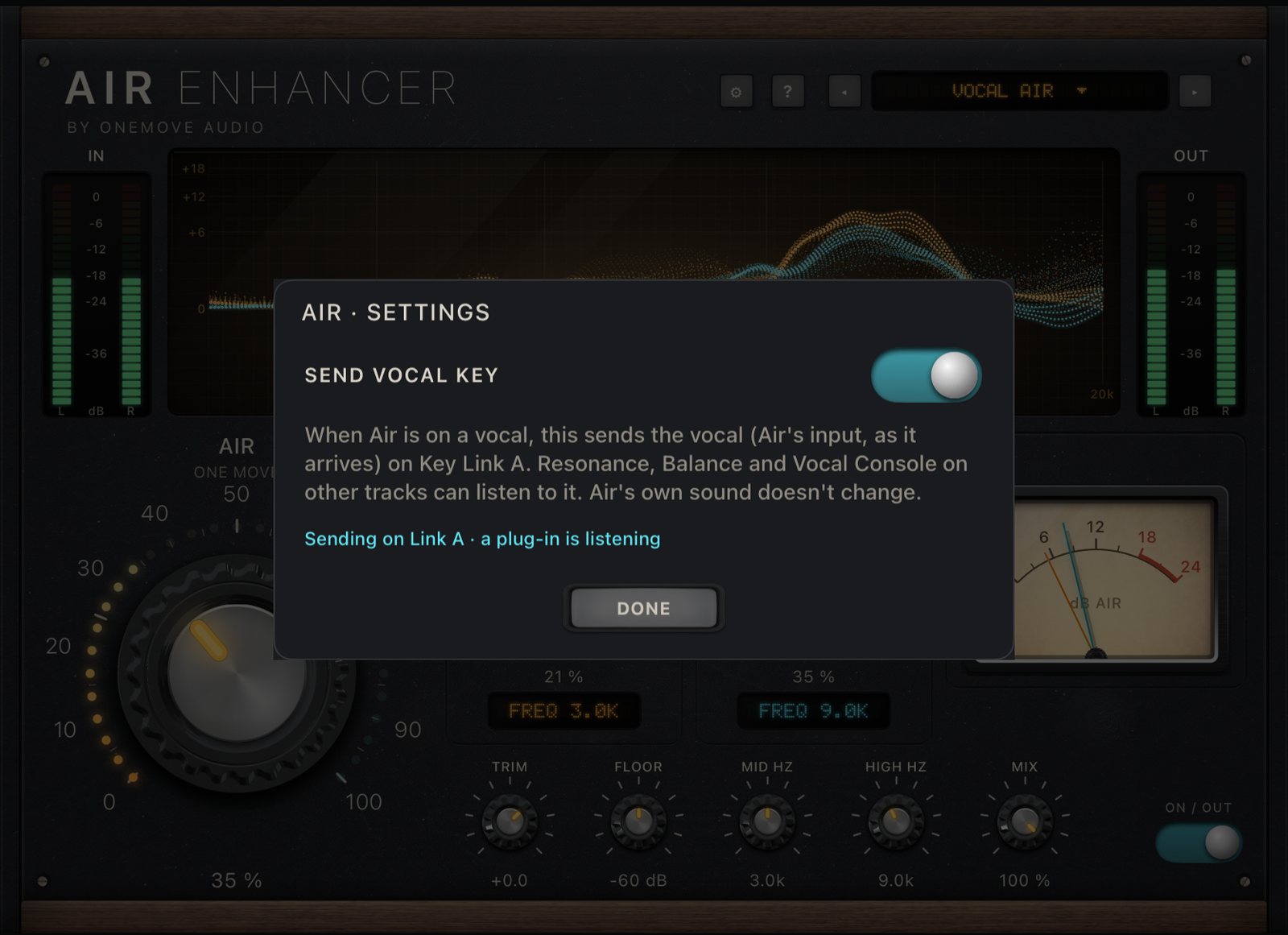
Tap the ⚙︎ button in the header to open Air's settings. It has one switch: Send vocal key (off by default).
When it's on, Air shares its input (the vocal as it arrives, before Air touches it) on Key Link A. Other OneMove plug-ins on other tracks, such as OneMove Vocal Console and Resonance & Balance, can listen to it and make room for the voice, with no side-chain routing in the host. Air's own output doesn't change. The settings card shows when another plug-in is listening.
Key Link works only between OneMove plug-ins on the same device, inside the shared app group. Nothing leaves the device. The plug-ins that listen to Key Link aren't on the App Store yet. Air does everything else on its own.
Try it in the app
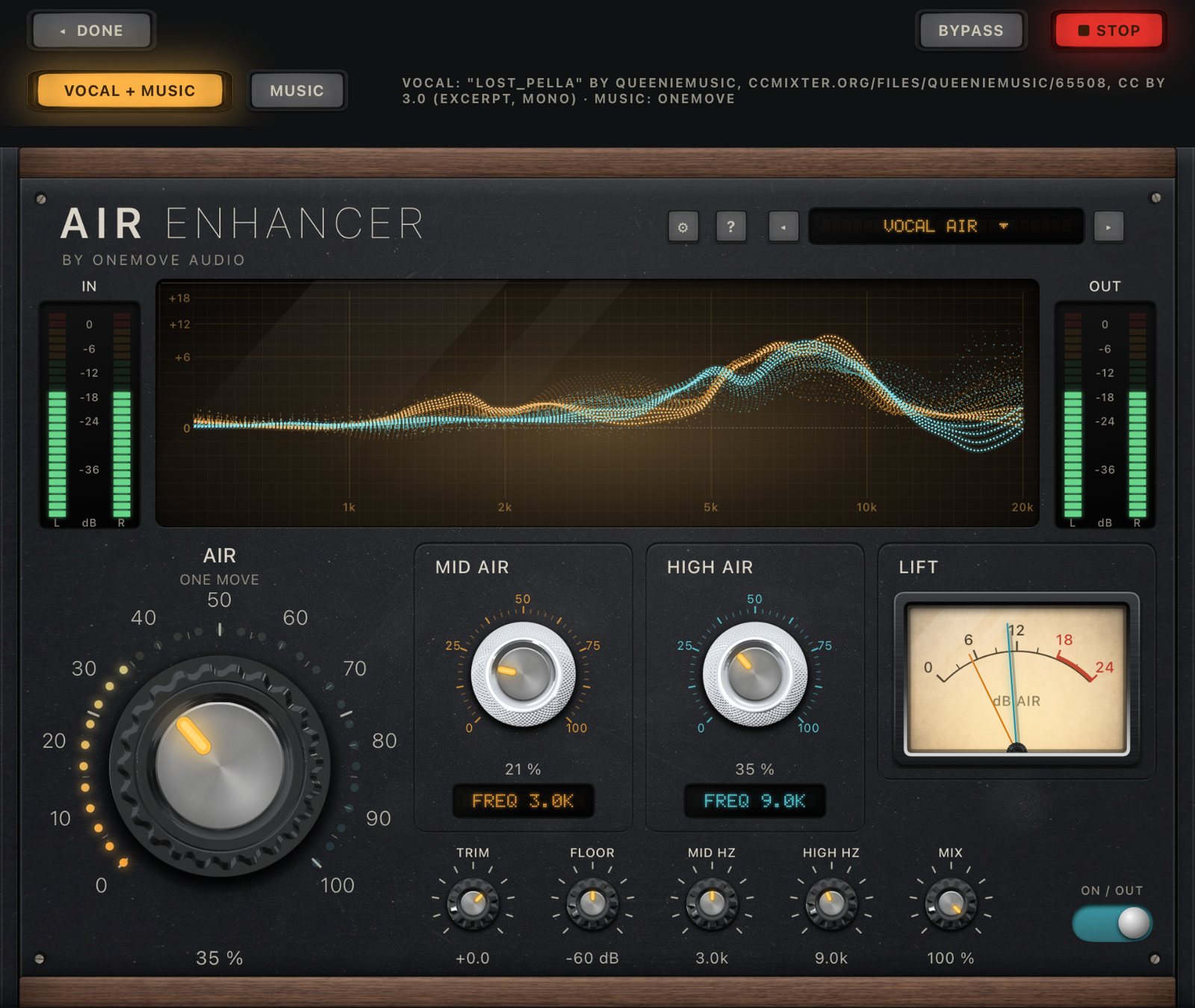
You can hear Air without a host. On the app's main screen, tap Try Air:
- Vocal + music plays a sung demo over a band. Air is on the vocal only, as it would be on a vocal track.
- Music plays the band on its own, with Air on the whole mix.
- Bypass switches Air in and out. Stop stops the audio, and Done goes back.
The app plays only its built-in demos. It never records and never uses the microphone.
Automation and MIDI
Every control is a host parameter: Air, Mid Air, High Air, Mid Air Frequency, High Air Frequency, Trim, Floor, Mix, On and Send Vocal Key. You can automate any of them, or map them to MIDI controllers in your host. Moving the Air parameter moves Mid Air and High Air with it, as on the panel.
Tips
- Where in the chain: after EQ and compression, before reverb. Air reacts to what it hears, so compressing first gives it a steadier top end to work with.
- Noisy recordings: raise the Floor (towards −50 dB) so hiss in the pauses stays down, or clean the noise first.
- Sibilant vocals: lower Mid Air, or raise High Hz, so the lift sits above the "s" range.
- Parallel: Mix at 40–60 % keeps more of the original top end and adds the air on top.
- On a bus: start with Bus Open and keep Air low. A little goes a long way across a whole mix.
Host setup tips
- One instance per part. Put Air on the track or bus you want to open up, as an audio effect. It works in mono and stereo.
- No latency to compensate. Air reports zero latency, so it never moves a track in time.
- Settings are saved by your host. Every control is stored with the host's session, and the preset menu sets a starting point you can change.
- Loopy Pro is the host we have tested our plug-ins in. Air is a standard AUv3 audio effect; if something doesn't work in your host, tell us which one.
Troubleshooting
Air isn't in my host's list
Open the OneMove Air app once, then close the host completely and open it again. Hosts read the list of plug-ins when they start. In the list, Air is under OneMove, as OneMove: Air.
No sound, or I can't hear a difference
- No sound at all: Air never mutes. Check the track itself first: the host's bypass, the track's input and monitoring, and that audio reaches the track (the IN meter moves). If IN moves and OUT doesn't, tell us.
- No difference: check that ON / OUT is on ON, the Air knob isn't at 0 and Mix isn't at 0 %. On material that is already very bright, Air adds little by design: watch the display and the Lift meter to see what it is doing.
The pauses got noisier
Raise Floor (towards −50 dB), so the lift fades out on quiet passages.
A crackle when I move or resize the plug-in window
A known issue in version 1.0, in all OneMove plug-ins: moving, resizing or covering the plug-in window while audio plays can cause a short crackle. A fix is planned for an update. If you hear crackles at other times, please report it.
Key Link isn't connecting
- Send vocal key is off. Open ⚙︎ and switch it on. Air sends on Link A.
- The receiver listens to another letter. On the other OneMove plug-in, choose Link A as its key.
- The settings card says no listener is detected yet. It looks for a plug-in reading Link A. A receiver that isn't playing, or one installed from an older build, may not show up there even when it is linked. Check the receiving plug-in's own Key Link display.
- Two senders. Only one plug-in should send on a letter. Switch off the other sender, or move it to another letter.
Key Link works only between OneMove plug-ins on the same device. Nothing leaves the device.
Report a bug or suggest an idea
Use the support form, or Help & bug report in the app, which fills in the app version and your device. Tell us your host, what you did and what happened. For an idea, pick Idea or request.