

OneMove Master user manual
OneMove Master is mastering to a loudness target for iPad and iPhone, as an AUv3 plug-in and in its own app. Pick a target, play the loudest part of your song, and Master learns it for 12 seconds, sets the gain so the song lands on the target, then holds still. Found a bug or have an idea? Tell us.
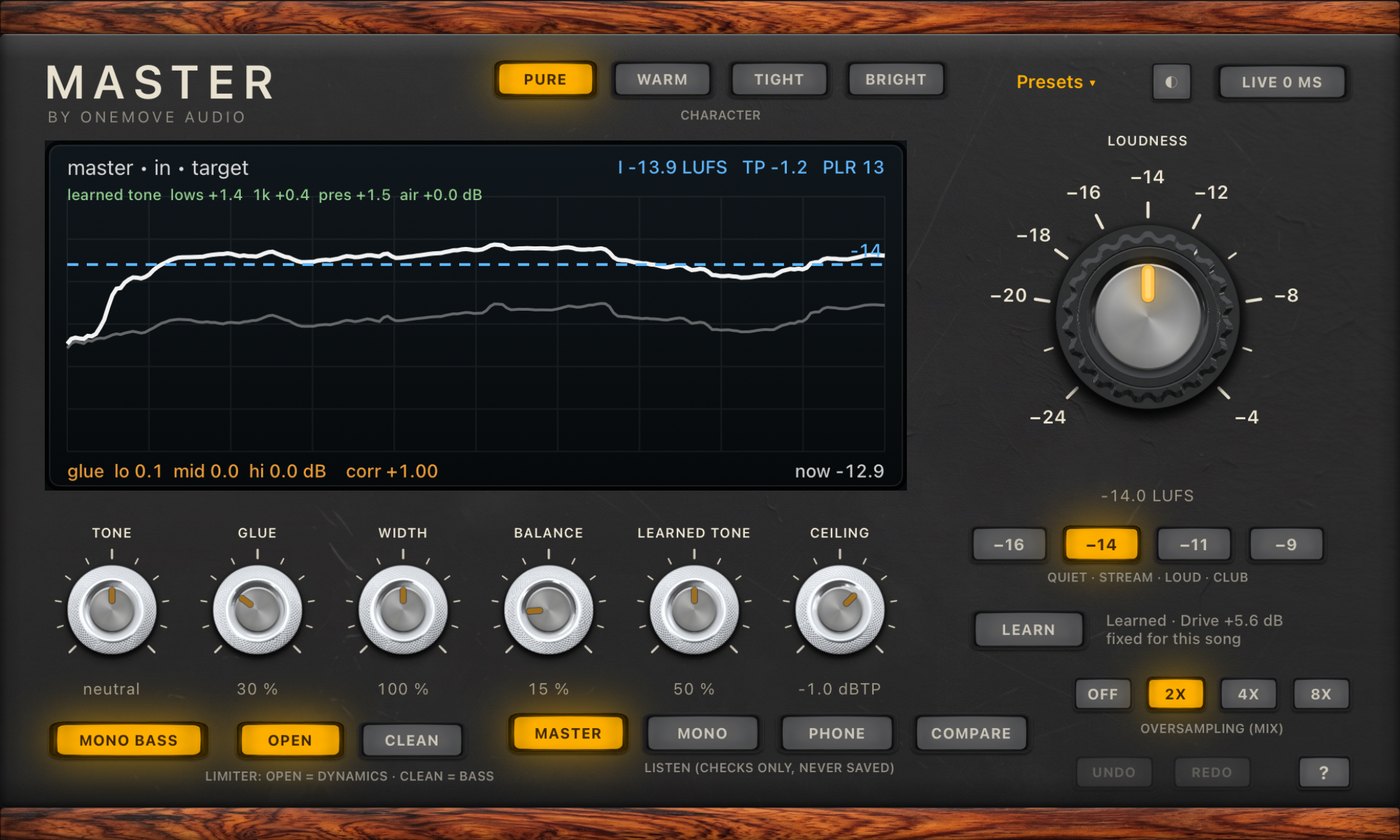
Getting started
- Install OneMove Master from the App Store and open the app once. A one-minute tour shows the basics; it opens again from ? › Take the tour.
- In your AUv3 host, add an audio effect last on the master or main output and choose OneMove › Master.
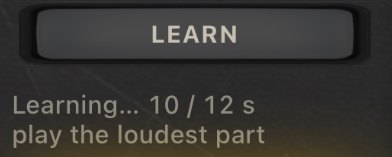
- Pick a target (−14 for most streaming services), then play the loudest part of the song. Learn listens for 12 seconds and sets Drive. After that Drive stays fixed, so the master doesn't ride your song.
To hear it first without a host, tap Play in the app's Try it section: our demo song plays through Master, and Bypass switches it out.
Where it goes in each host
- AUM: tap the empty slot at the bottom of the master channel (or the last slot of your main bus), open Audio Unit Extensions and choose OneMove: Master.
- Loopy Pro: open the main output's effects, add an effect, then Audio Unit Extensions › OneMove: Master.
- Logic Pro for iPad: on the Stereo Out channel strip, tap an empty Audio FX slot, then Audio Units › OneMove › Master.
- Cubasis: open the Mixer, then the master channel's Inserts, tap an empty slot and choose OneMove: Master.
- GarageBand has no master slot. Share the song as audio to Files, then use Master a file in the Master app.
Master goes last: after it, any change to the mix changes the loudness it learned. If you add effects after it, press Learn again.
Loudness and Learn
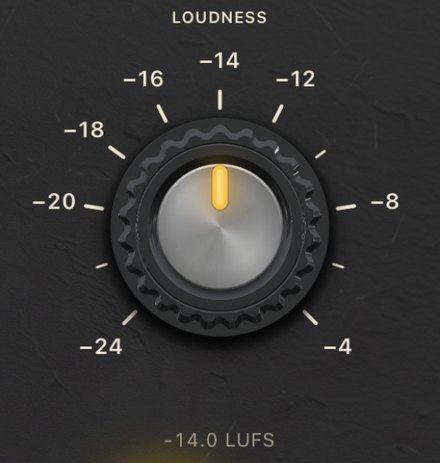
Loudness · −24 to −4 LUFS (−14)
The big knob: the integrated loudness the master lands on. Turning it moves Drive by the difference and re-learns briefly. It never changes your character or preset, only how hard the limiter works.
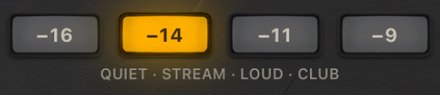
Target chips · −16, −14, −11, −9
One tap for the usual targets: quiet, streaming, loud and club. On iPhone the line under them says when the ceiling follows the target (below).

Learn · press to learn again
Listens to the next 12 seconds of music: 4 seconds to aim, then 8 seconds measured at a fixed Drive, and one correction. The line beside it shows the Drive it learned, fixed for this song. Press it after a big change, or when you load another song. "Waiting for music" means it hasn't heard anything yet.
Which target? −14 LUFS for most streaming services, −16 for quieter platforms and podcasts, −11 for a louder master, −9 for club masters. Louder targets mean more limiting: the busiest part of the mix (often the vocal) comes down a little, as with any limiter.
The ceiling and the limiter
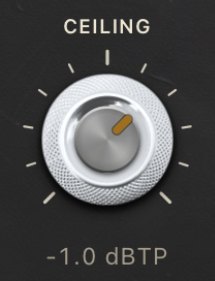
Ceiling · −3 to 0 dBTP (−1)
The highest the output may go, measured as true peak (between samples too).
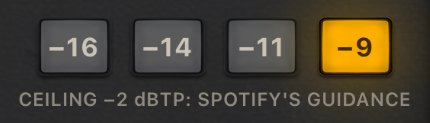
Louder than −14, the default ceiling becomes −2 dBTP, following Spotify's guidance, so lossy encodes don't clip. If you set your own ceiling, Master keeps it.
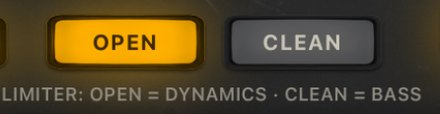
Limiter · Open / Clean (Open)
Open keeps the most punch and loudness range; Clean is smoother on bass-heavy mixes.
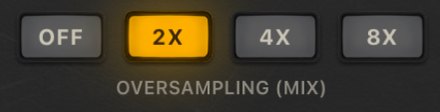
Oversampling · Off, 2x, 4x, 8x (2x)
In Mix mode, catches peaks between samples more cleanly, at more CPU.
Characters and Learned tone

Character · Pure, Warm, Tight, Bright (Pure)
Pure is clean, EQ only. Warm has rounder lows and a touch of tube colour. Tight has a firmer low end and tape colour. Bright has more presence and air. All four are level-matched, so switching changes the sound, not just the volume.
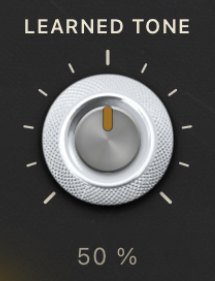
Learned tone · 0 to 100 % (50 %)
While learning, Master compares your mix with released masters in four regions (lows, 1 kHz, presence, air) and corrects part of the difference. 0 % is off, 50 % is as learned, 100 % twice as much. If a region is already well over, the character also stops adding to it.
The screen's second line shows what Learned tone set, in dB per region.
Tone, Glue, Width, Balance
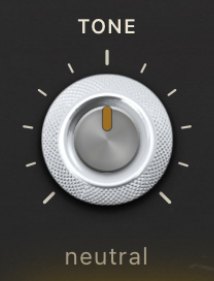
Tone · darker to brighter (neutral)
A gentle tilt of the whole mix.
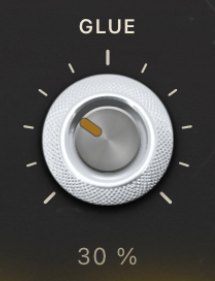
Glue · 0 to 100 % (30 %)
Holds back bursts in three bands (lows, body, top) without squashing the rest. 30 % is gentle.
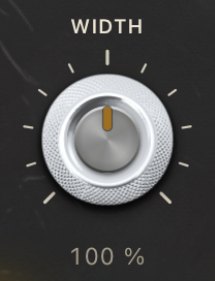
Width · 0 to 200 % (100 %)
100 % is as mixed; less is narrower, more is wider.

Mono bass · On / Off (On)
Keeps everything below 120 Hz in the centre, whatever Width does.
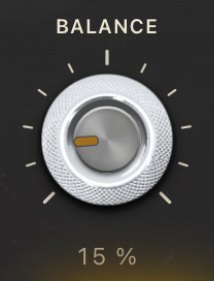
Balance · 0 to 100 % (15 %)
Evens out masked or harsh regions moment by moment. 15 % is subtle.
Live or Mix
Live 0 ms · On / Off (Off: Mix)
Lit, Master runs with zero latency, to play or sing through it in AUM or Loopy Pro. It limits sample peaks only. Off is Mix, the default: 4 ms of latency, reported to the host, and true-peak safe, for mixing and bouncing.
Listening checks

Master is what you'll release. Compare plays your unmastered mix at the master's loudness, so you judge the sound, not the level. Mono and Phone let you hear one speaker and a phone-sized one. These checks are never saved and never bounced.
Reading the screen
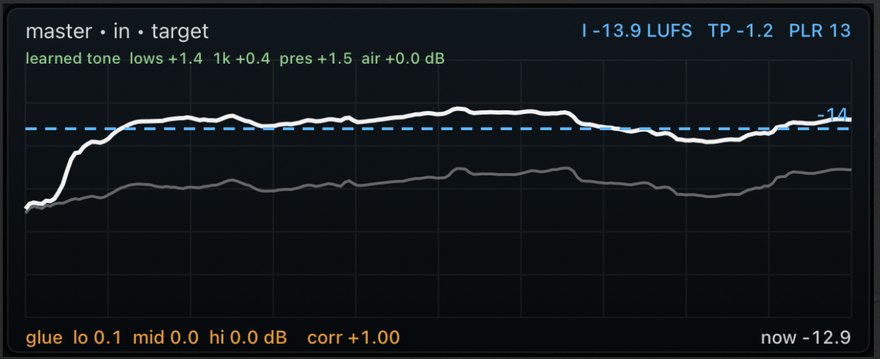
White is the master's short-term loudness (3 s), grey is the mix coming in, the dashed blue line is the target. Amber from the top is the limiter's gain reduction. Top right: integrated loudness (I), true peak (TP) and PLR (peak to loudness: lower is more squashed; 8 or more keeps punch). The second line shows what Learned tone set; the bottom line shows how much Glue holds back in each band and the loudness right now.
Undo, Redo, presets

Undo / Redo
Step through your changes: a knob, a preset, a character or a Learn you started. A drag is one step. Host automation is never recorded. ? opens the quick guide, the manual and the support form.
Presets
Streaming −14, Quiet −16, Warm & Glued, Bright & Open, Loud Club −9, Gentle (Acoustic) and Live (zero latency). Loading one keeps your learned Drive and re-learns for the new target. You can save your own in the host. ◐ beside it switches the panel between black and cream.
Master a file (in the app)
For GarageBand or any bounce:
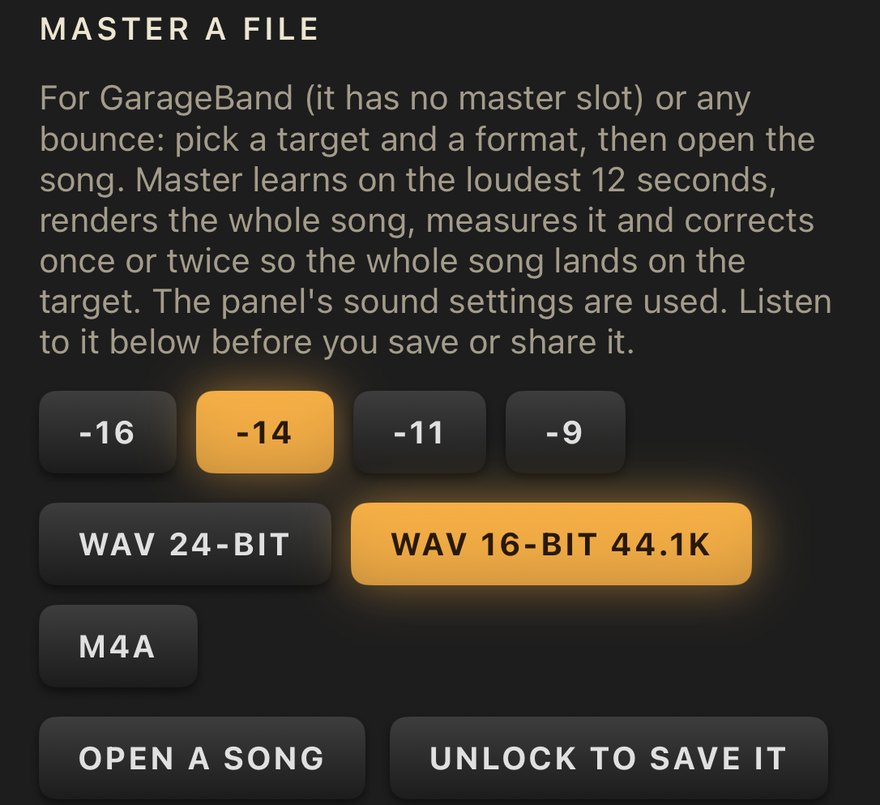
- Pick a target and a format: WAV 24-bit, WAV 16-bit 44.1k (dithered, what most distributors ask for) or M4A.
- Tap Open a song and pick a file (WAV, AIFF, MP3, M4A). Master finds the loudest 12 seconds, learns there, renders the whole song, measures it and corrects once or twice so the whole song lands on the target. A progress bar shows each step; Cancel stops it.
- Listen: Play, and switch between Master and Original (matched to the same loudness) at the same moment.
- Share the file, or find it in Files › On My iPad/iPhone › OneMove Master. Choosing another format saves it again without rendering.
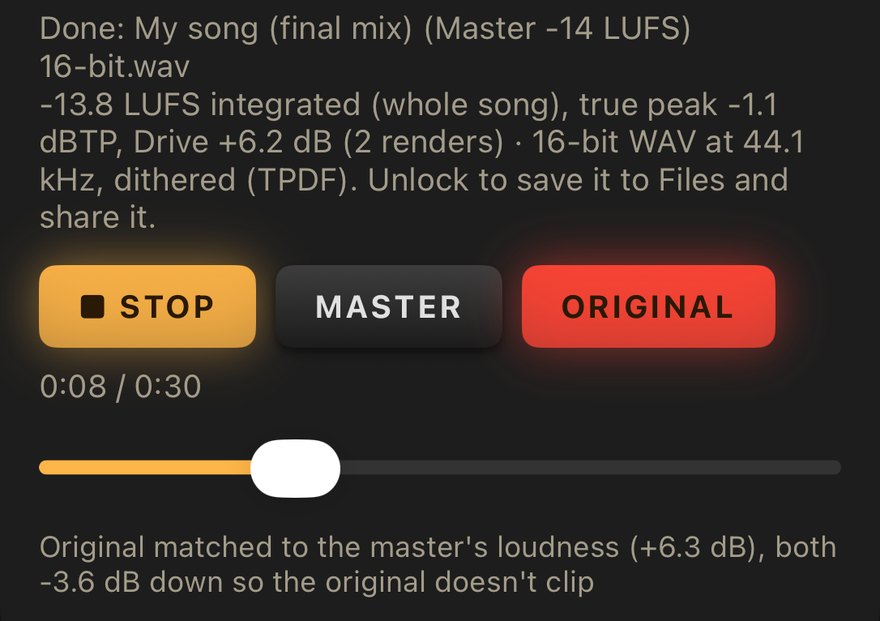
The panel's sound settings (character, Glue, Tone…) are used for the file.
Free version and unlock
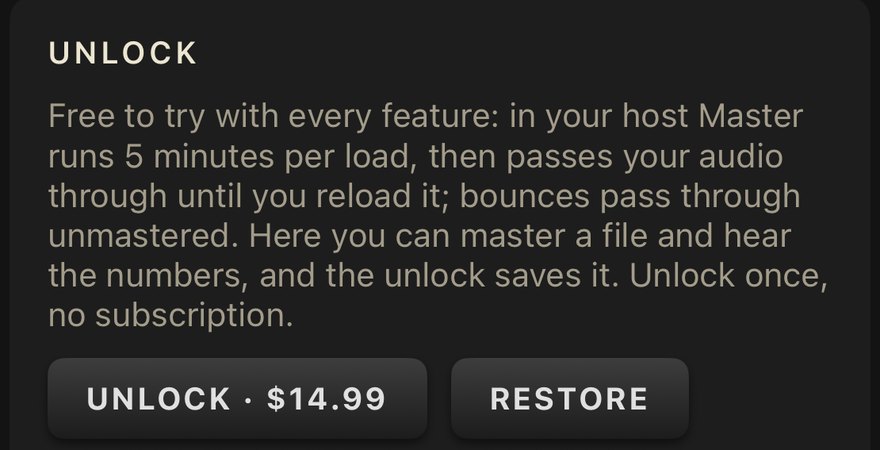
Every feature works. In a host, Master runs 5 minutes per load, then passes your audio through until you reload it; the panel shows the time left. Bounces pass through unmastered. In the app you can master a file and listen to it; saving it needs the unlock. Unlock once in the app; every Master plug-in, in any host, then runs in full. Restore brings it back on another device.
Troubleshooting
- It doesn't reach the target. Learn needs music: play the loudest part for 12 seconds. Quiet intros give it less to measure. Press Learn again on the chorus.
- It's louder or quieter later in the song. That's expected: Drive is fixed after Learn, so the song keeps its own dynamics, as a mastering engineer's gain would. Master a file measures the whole song instead.
- Live sounds harder on peaks. Live has no look-ahead; use Mix for bouncing.
- It stopped processing after a few minutes. That's the free version's 5 minutes per load: reload the plug-in, or unlock once in the app.
- I can't find it in my host. Open the Master app once, then restart the host: hosts read the list of plug-ins when they start.
- Something else? Send us a bug report: include your device, iPadOS/iOS version and host.
Report a bug or suggest an idea
The ? button on the panel and in the app opens this manual, a quick guide, and the support form with Master already chosen: report a bug, suggest an idea or ask a question.